A responsive App for displaying Grafana dashboards on digital signage screens.
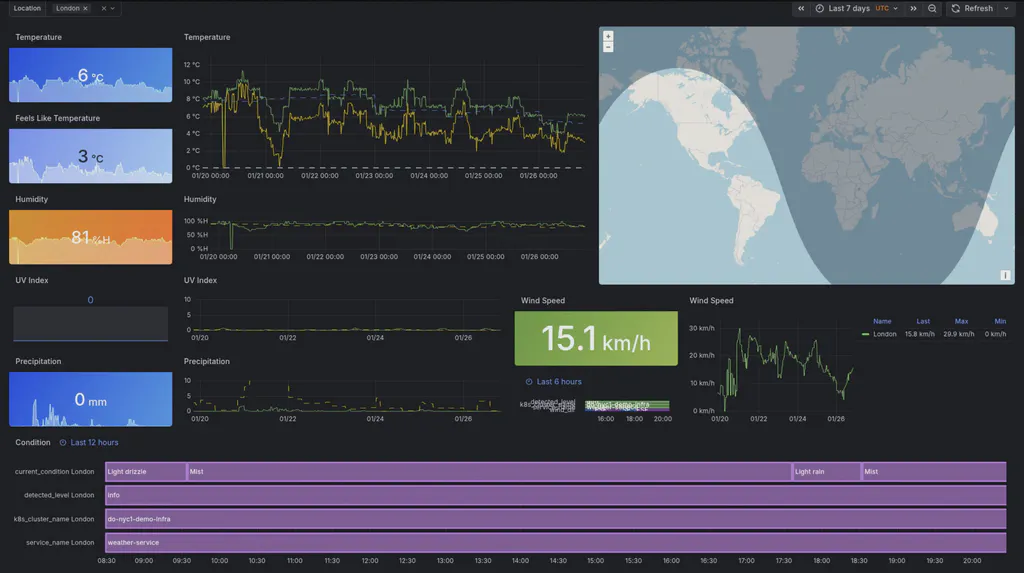
Grafana Dashboard App
The Grafana Dashboard App securely displays live dashboards on digital signage, ensuring efficient real-time monitoring across all screen sizes. Fast, token-based authentication keeps data secure, while configurable refresh intervals guarantee up-to-date information for offices, factories, and teams. Try the Grafana Dashboard App today to transform your data displays and keep your teams informed in real time
Click the button below to install the Grafana Dashboard App now
Display Grafana Dashboards on Screenly
Step 1: Connect the Grafana Integration
Log in to your Screenly account.
Go to Integrations.
Click Grafana.
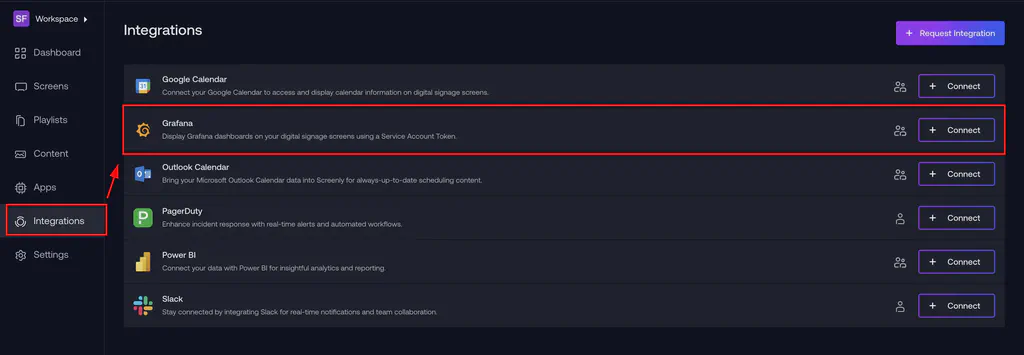
Enter your Grafana URL and Service Account Token to authorize the connection. (Check How to get your Service Account Token )
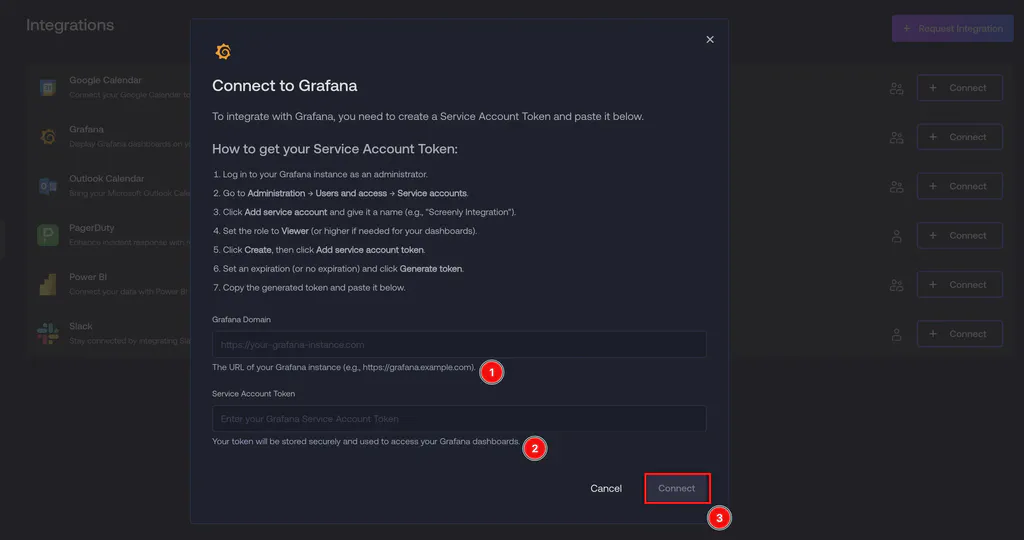
NOTE: Only the account owner can view and connect the Grafana integration. Once the integration is added, other team members will be able to create and install the Grafana App on their own.
Step 2: Install the Grafana Dashboard App
Once the integration is connected, open the App Store.
- Search for the Grafana Dashboard App, click Create.
- Enter a Name for this App. [1]
- Select your Dashboard ID [2], from the list and set the Refresh Interval [3].
- Click Install [4].
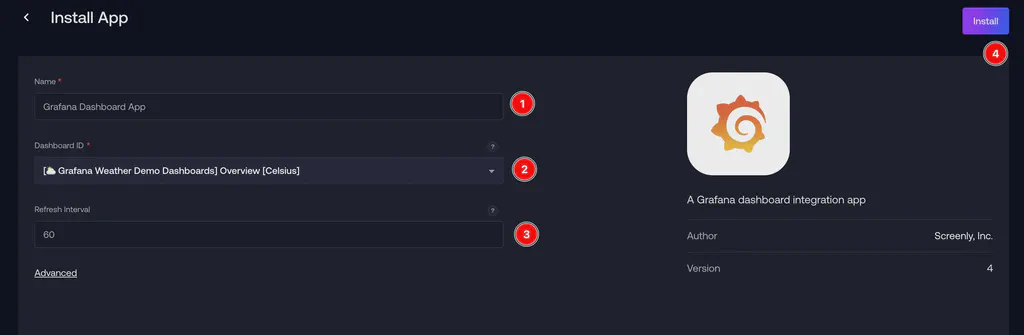
NOTE: Once the Grafana integration is connected, the Dashboard ID is automatically retrieved. You can then select your Grafana dashboard from the dropdown list during app installation.
How to get your Service Account Token
Log in to your Grafana instance as an administrator.
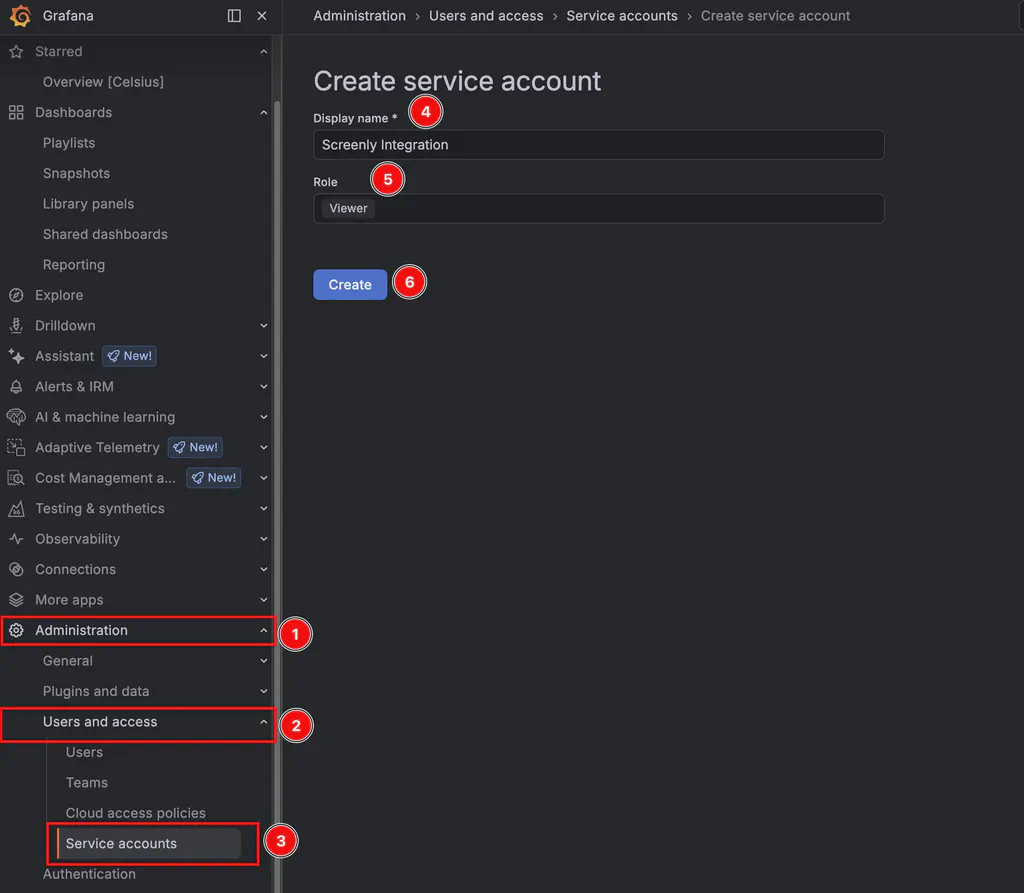
Go to Administration [1] → *Users and access [2] → Service accounts [3].
Click Add service account and give it a name [4] (e.g., “Screenly Integration”).
Set the role to Viewer [5] (or higher if needed for your dashboards) and click Create [6].
Click Add service account token [7].
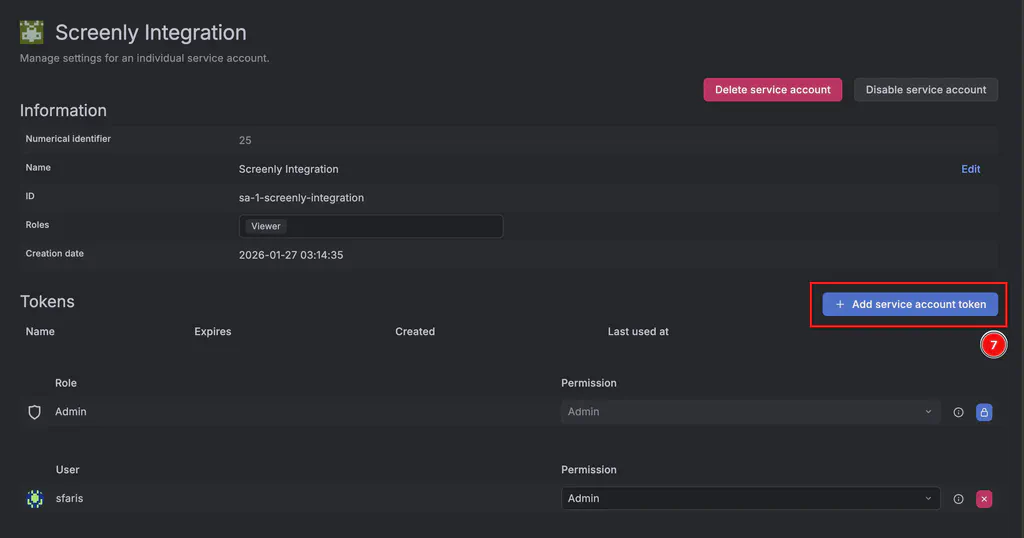
Set an expiration [8](or no expiration) and click Generate token [9].
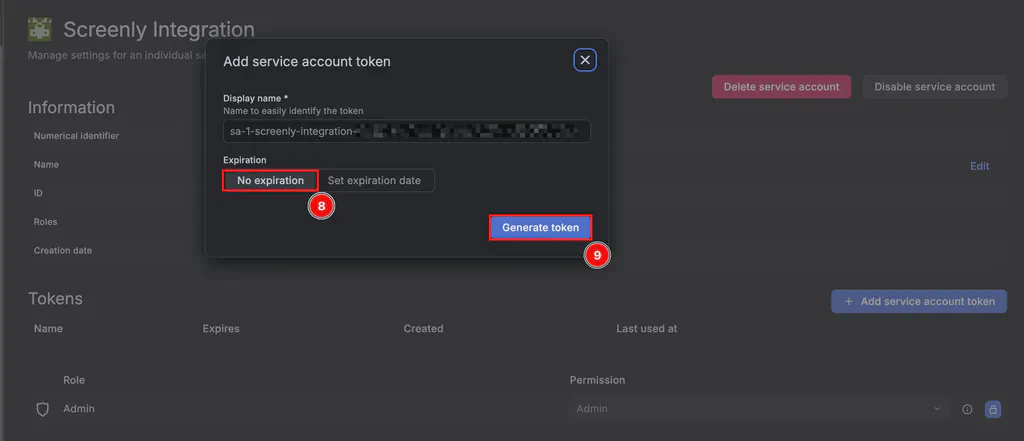
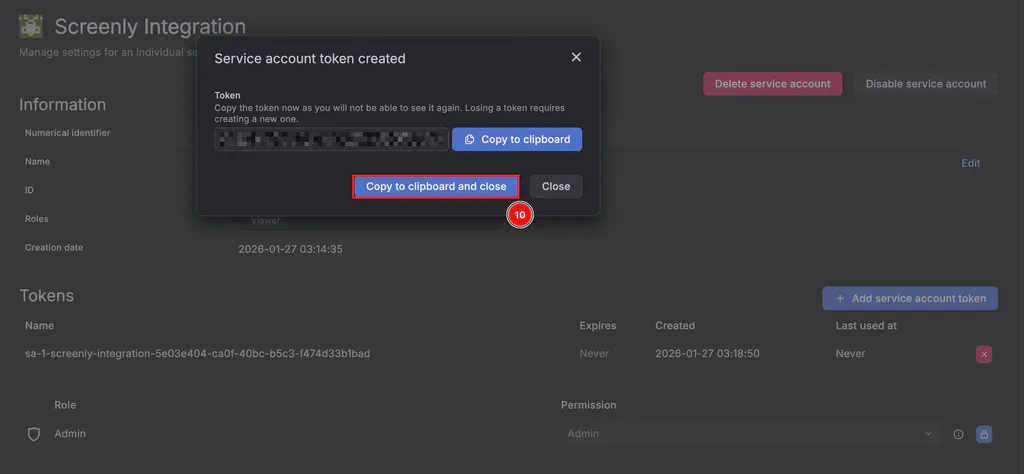
Copy the generated token [10] and enter it in Step 1: Connect the Grafana Integration.
Getting started
To get started with the Grafana Dashboard App, the first step is to get a 14-day free trial account with Screenly. With our 14-day free trial, you can see inside Screenly and determine if the platform makes sense for you.
With Screenly Anywhere, you can launch and display the Grafana Dashboard App on a web browser without any additional hardware.
That’s all for now. If you have any questions, we are always happy to help. Reach out to Screenly Support anytime, and we’ll get in touch with you as soon as possible.