
Display events from your Outlook Calendar on Screenly Players.
Outlook Calendar App
The Outlook Calendar App is a plug-and-play digital signage solution designed to showcase your Outlook Calendar events directly on your displays. Whether you’re highlighting upcoming meetings, team events, or personal appointments, this app keeps your community engaged and informed right from your Screenly powered displays.
Real-Time Calendar Events
Stay up to date effortlessly. Just like the Calendar App, the Outlook Calendar App refreshes automatically every 10 seconds, ensuring your display always shows the most recent events without needing any manual updates.
Display Modes
The Outlook Calendar App supports three display modes : schedule, weekly, and daily:
- Schedule: Displays the calendar in a way that highlights upcoming events for the current day and the next day
- Weekly: Shows a week view, listing events for each day of the week
- Daily: Focuses on a single day, displaying all events scheduled for that day
Microsoft Outlook Account Connection
To begin using the app, simply connect your Microsoft Outlook account through the Screenly web console. This secure connection allows the app to fetch and display your calendar events.
To get started, go to the Integrations page and click the “+ Connect” button next to “Outlook Calendar”.
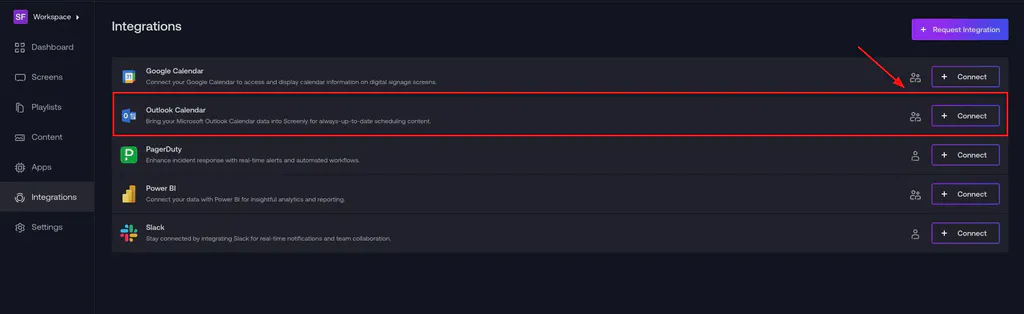
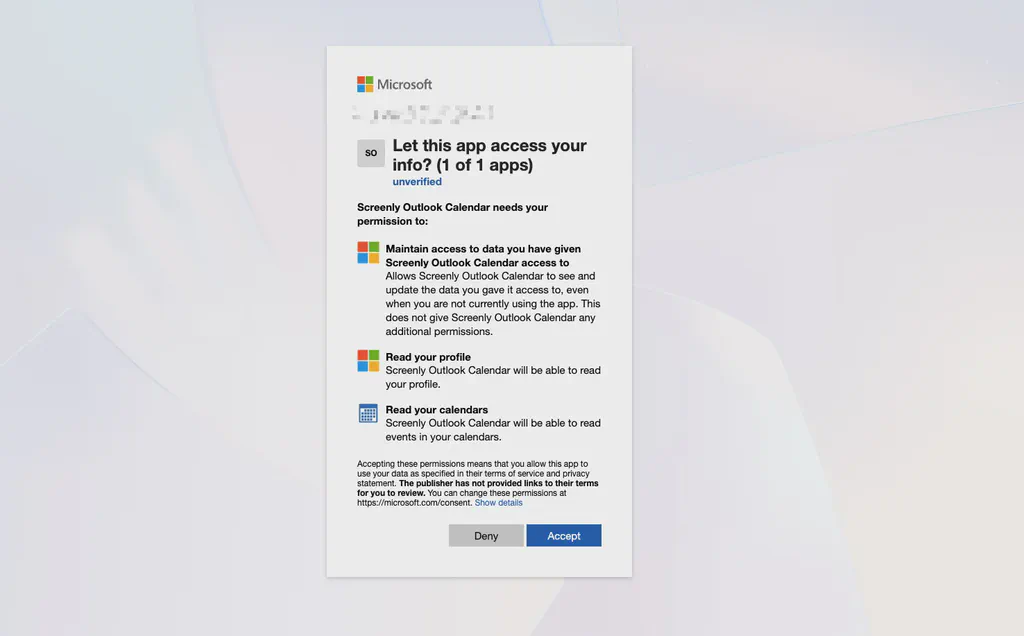
You will be prompted to confirm the connection to a Microsoft Outlook account. Click the “Connect” button and You will be redirected to a Microsoft OAuth consent screen.
Select the Outlook account you want to connect to Screenly. Follow the prompts to grant Screenly access to your Outlook Calendar data.
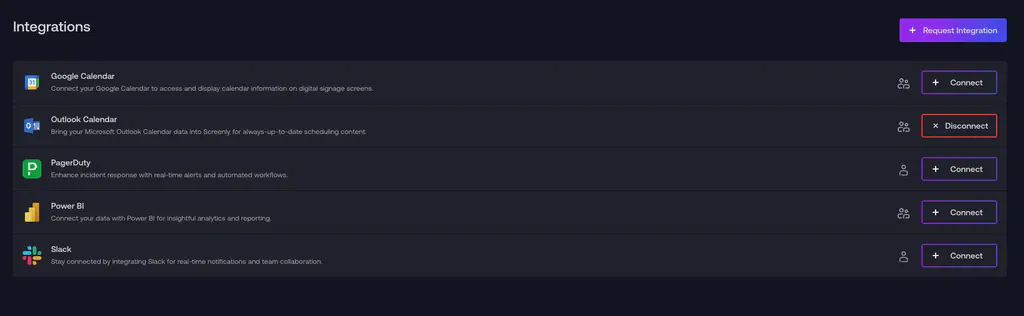
After successful authentication, you’ll return to the Integrations page where your Outlook Calendar connection will now show as active.
Click the button below to use the Outlook Calendar App now
Create Your Outlook Calendar App
Open the Screenly Apps page and select Outlook Calendar App to create a new instance.
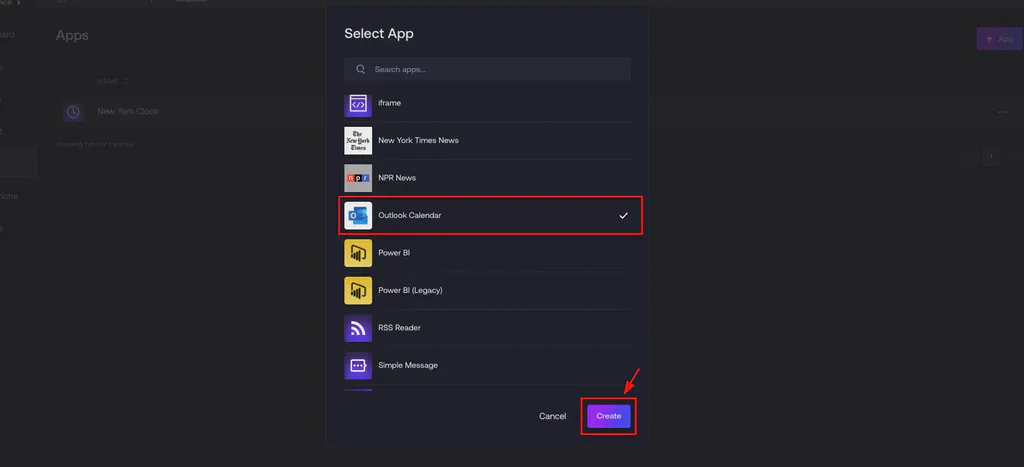
After selecting the app type, simply give your app a name and choose which Outlook calendar you want to display.
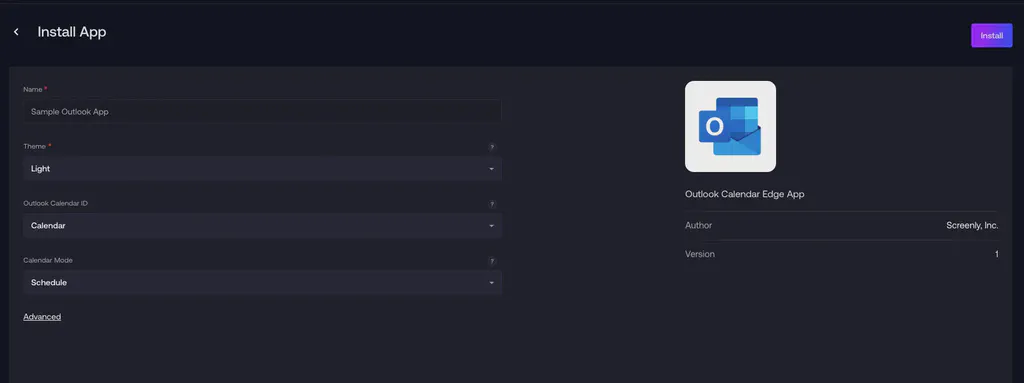
It’s that simple, no additional setup required once your Microsoft Outlook account is connected. Select your calendar, name your app, and you’re ready to go.
One of many Apps
The Outlook Calendar App is part of a larger App ecosystem. With Screenly Apps, users can build custom digital signage content that uses their business or third-party data quickly and easily. With the Outlook Calendar App, it’s possible to use it out of the box as is, and it is also possible to customise its styling and the information displayed. Additionally, users can edit triggers for when the App content displays. These triggers can include significant changes to the Outlook Calendar App or changes that are expected to cause schedule delays.
Getting started
To get started with the Outlook Calendar App, the first step is to get a 14-day free trial account with Screenly. With our 14-day free trial, you can see inside Screenly and determine if the platform makes sense for you.
With Screenly Anywhere, you can launch and display the Outlook Calendar App on a web browser without any additional hardware.
More information about setting up the Outlook Calendar App can be found in this documentation.
That’s all for now. If you have any questions, we are always happy to help. Reach out to Screenly Support anytime, and we’ll get in touch with you as soon as possible.