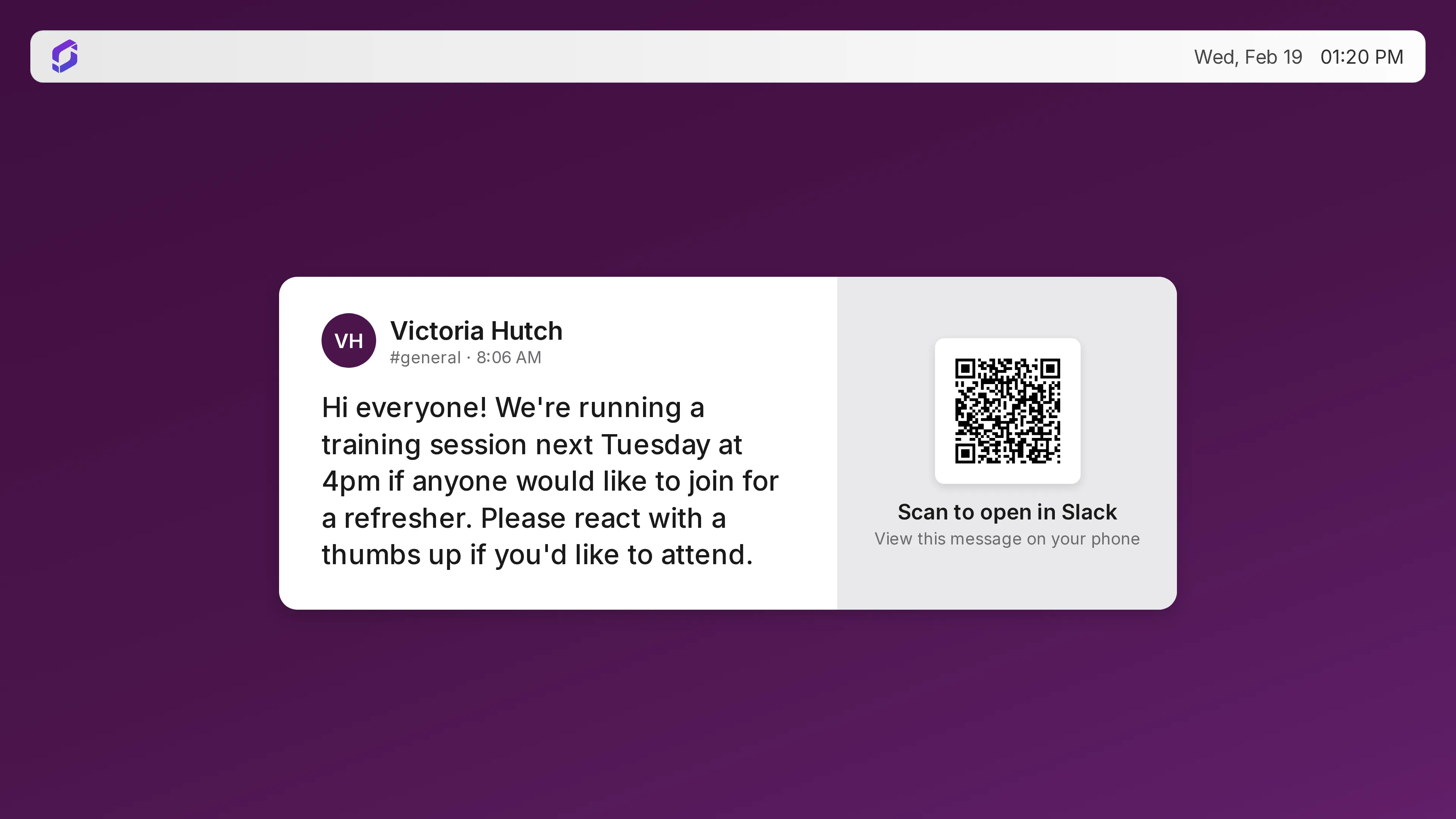
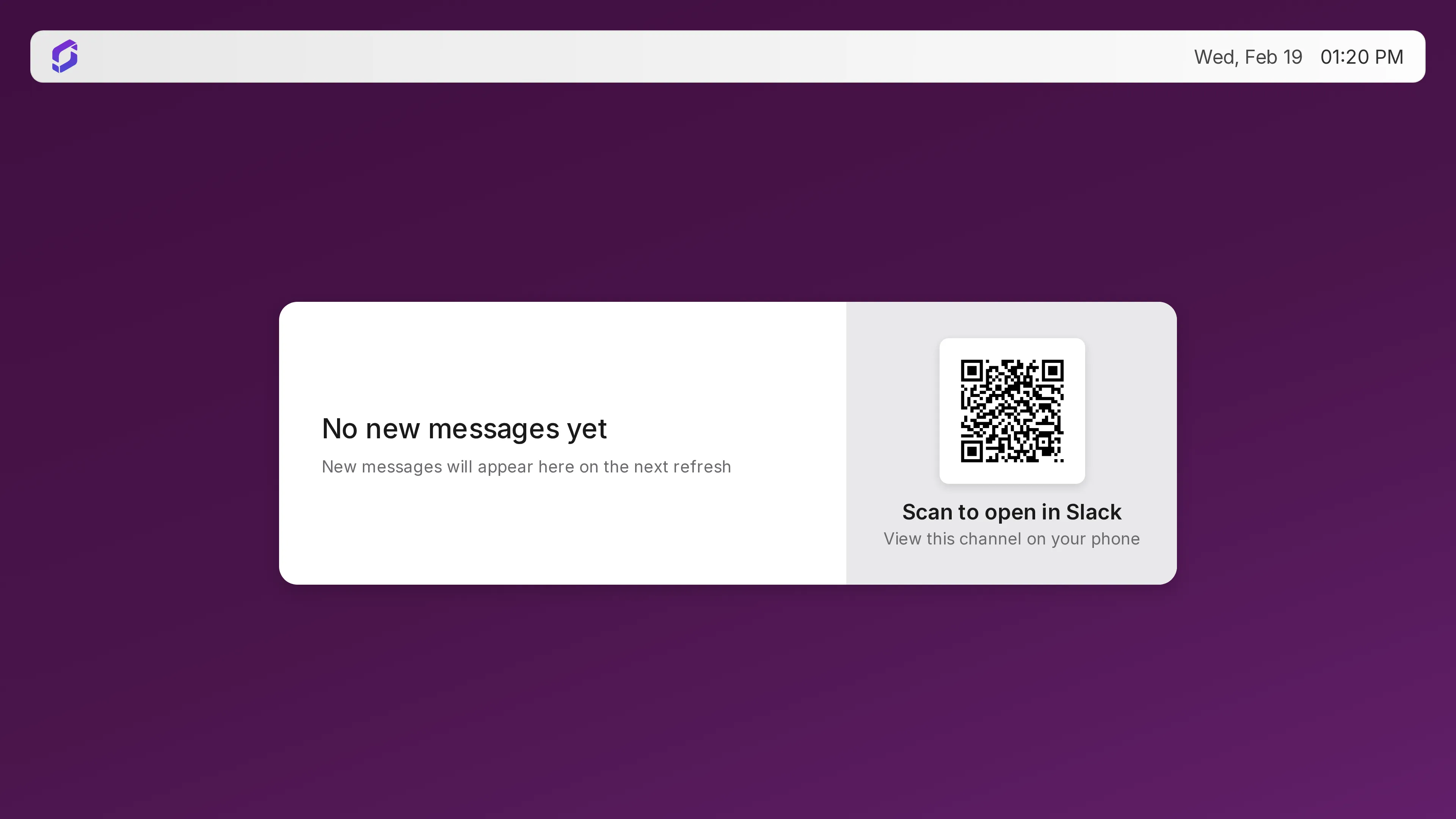
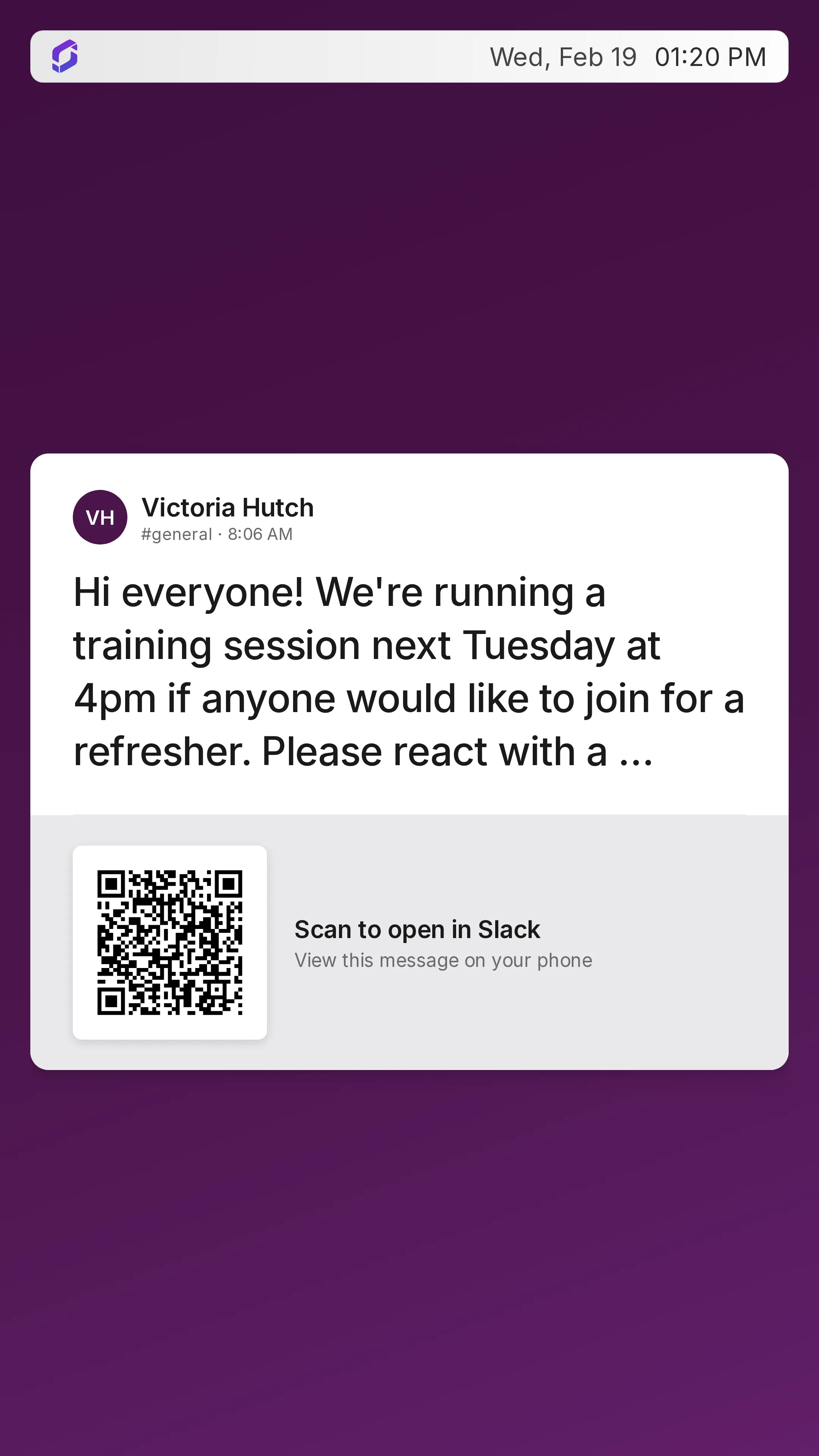
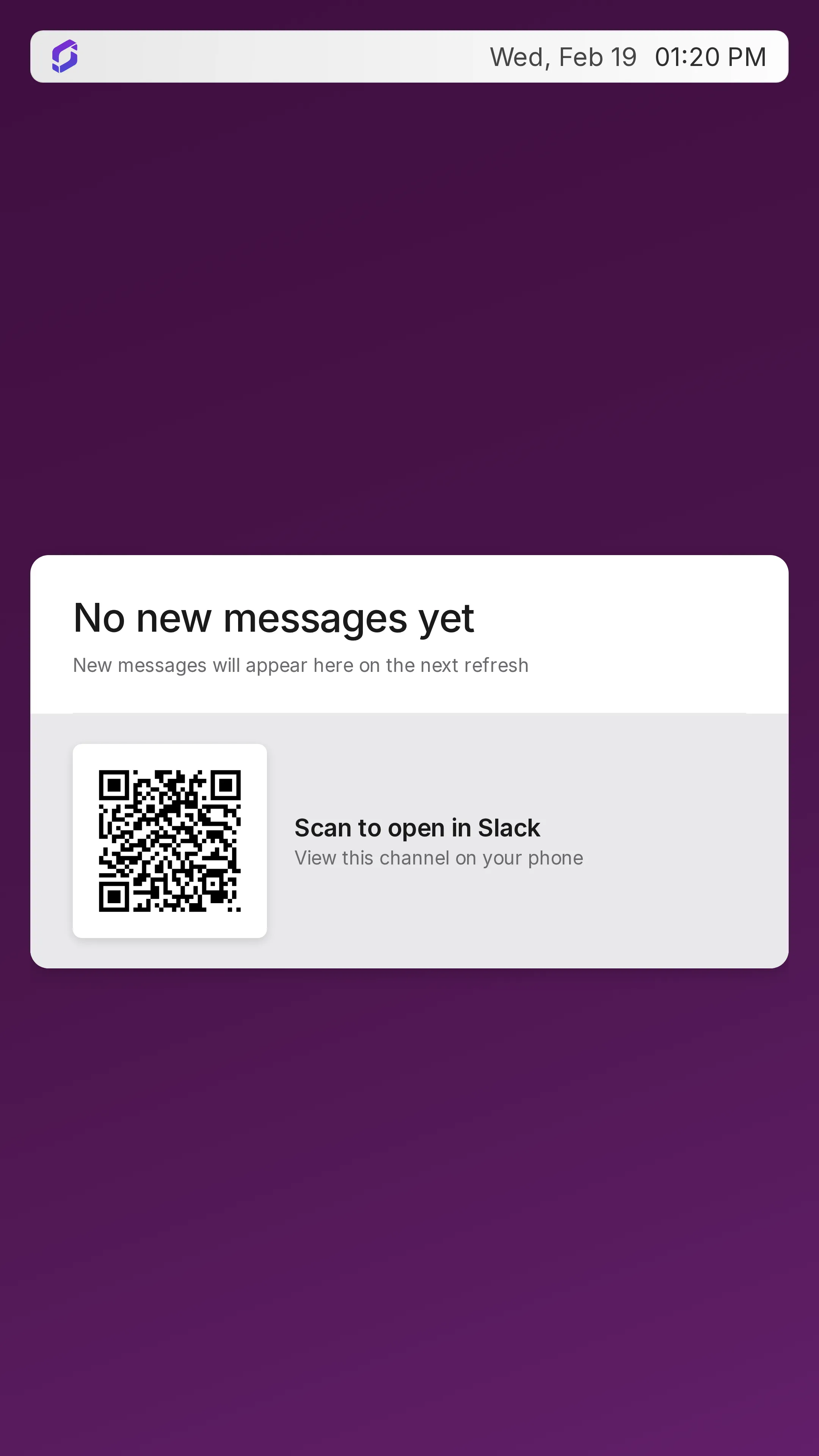
Slack is where teams share announcements, updates, and the messages that need to reach people beyond their laptops. With this Screenly app, you can display the latest message from a Slack channel full screen on your digital signs.
The message text appears full screen, and optionally the sender’s name, channel name, and a QR code that links back to the message in Slack. It is built for sharing announcements (for example, a private channel dedicated to a set of screens) rather than following high-traffic channels.
Display Slack messages on your digital sign
Connect your Slack workspace, pick a channel, and deploy. The app refreshes on a schedule you choose, so the screen always shows the latest message without anyone logging into Slack at the display.
What appears on screen
Each refresh shows the latest message from the channel you selected:
- Message text: the announcement, full screen
- Current time: a header clock and date
- Sender name and channel (optional): who posted the message and which channel it came from, shown together with the message timestamp
- QR code (optional): a scan-to-open link back to that message in Slack
The header clock and the message timestamp use the same locale and timezone, so they stay in sync.
Display Slack Messages on Screenly
Step 1: Connect Slack
Before you can display messages, connect Slack in Screenly. This adds the Screenly app to your Slack workspace.
- Log in to your Screenly account.
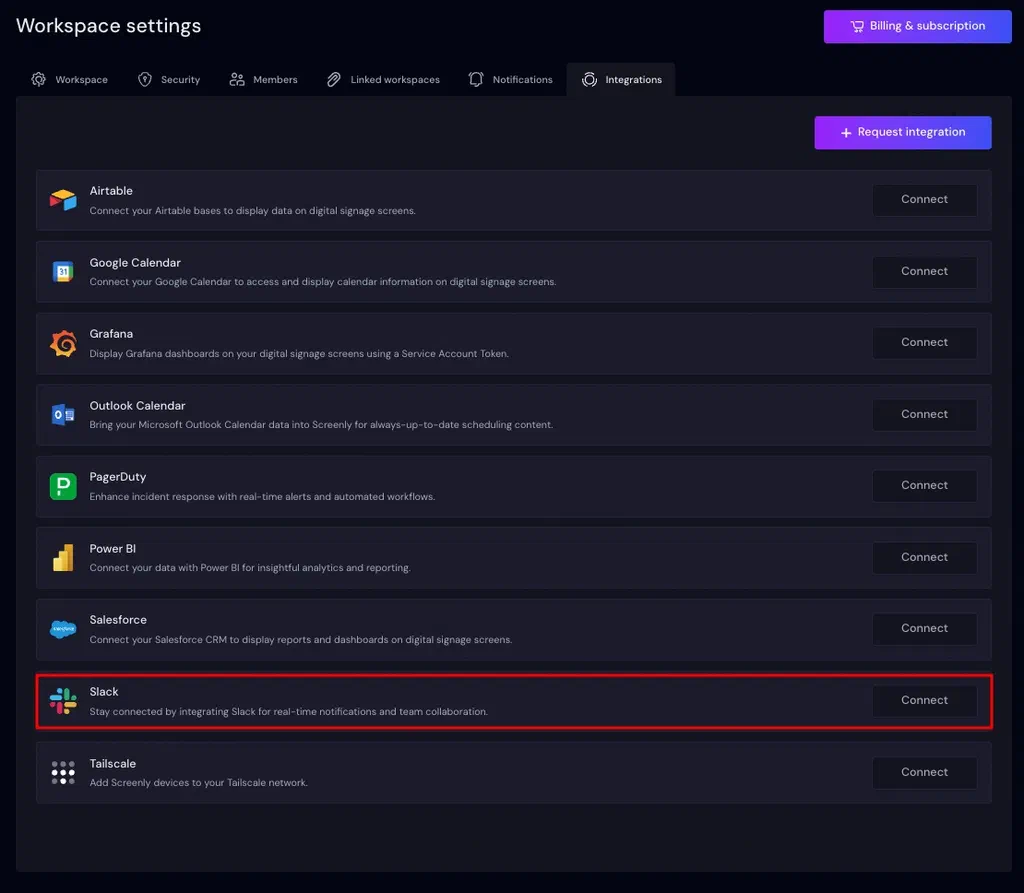
- Go to Settings → Integrations.
- Click Connect next to Slack.
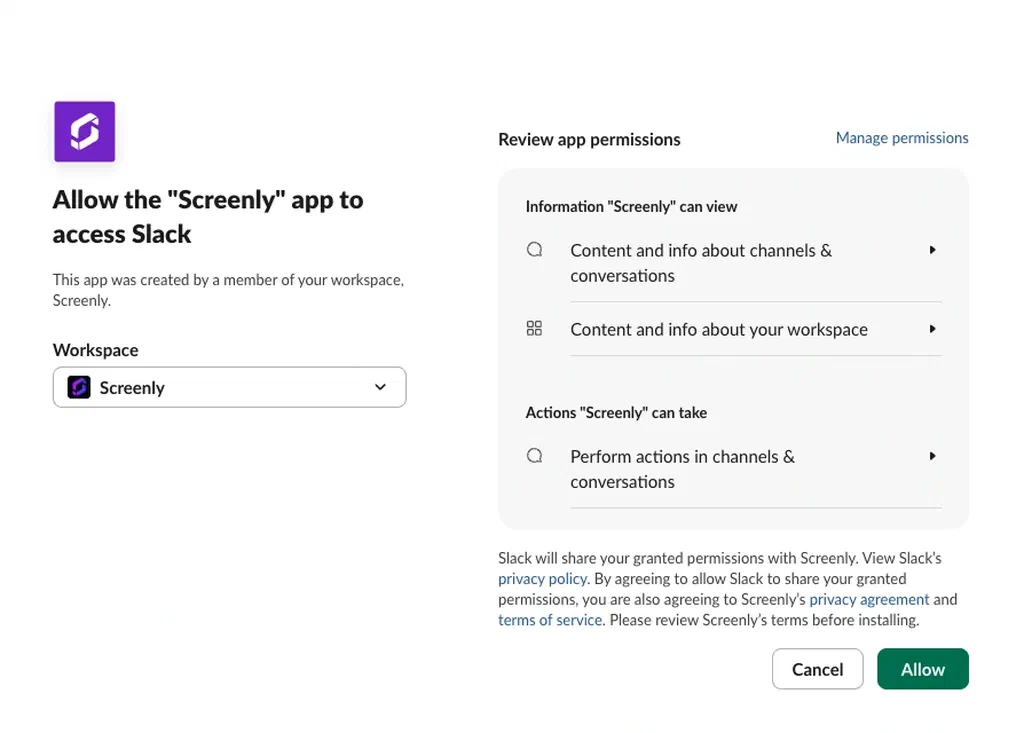
- Slack opens an authorization page. Review the permissions, then click Allow to install the Screenly app in your Slack workspace.
- You are redirected back to the Integrations page. Slack should now show as connected.
NOTE: You only need to do this once per Screenly account. After Slack is connected, anyone on the team can install the app and pick a channel.
Step 2: Install the Slack Messages App
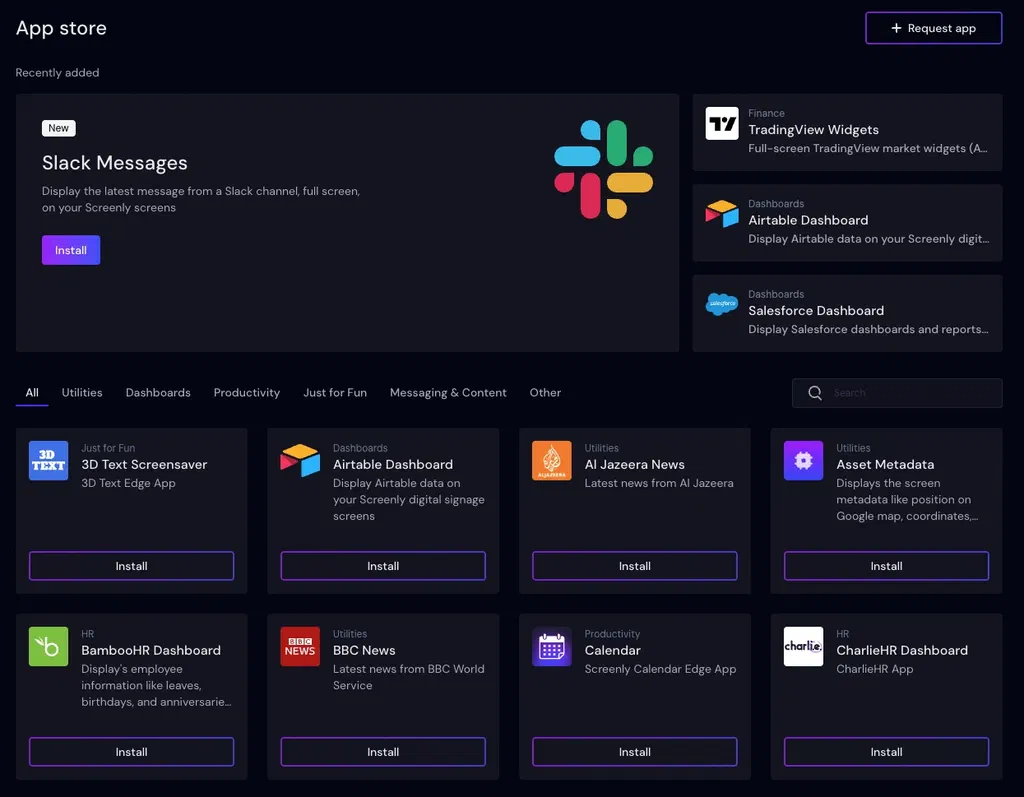
Once the integration is connected, open the App Store.
- Search for Slack Messages and click Install.
- Enter a Name for this app (for example
Slack Message #all-team). - Set Channel ID to the Slack channel you want on screen. After Slack is connected, this is a dropdown of channels by name, so you do not need the raw ID.
- Set Show QR Code if you want a QR code linking to the message in Slack. On by default.
- Set Show Sender Names if you want each message’s sender and channel name shown on screen. On by default.
- Optionally open Advanced to change refresh interval, locale, timezone, or on-screen errors (see below).
- Click Install (or Save if you are editing an existing app).
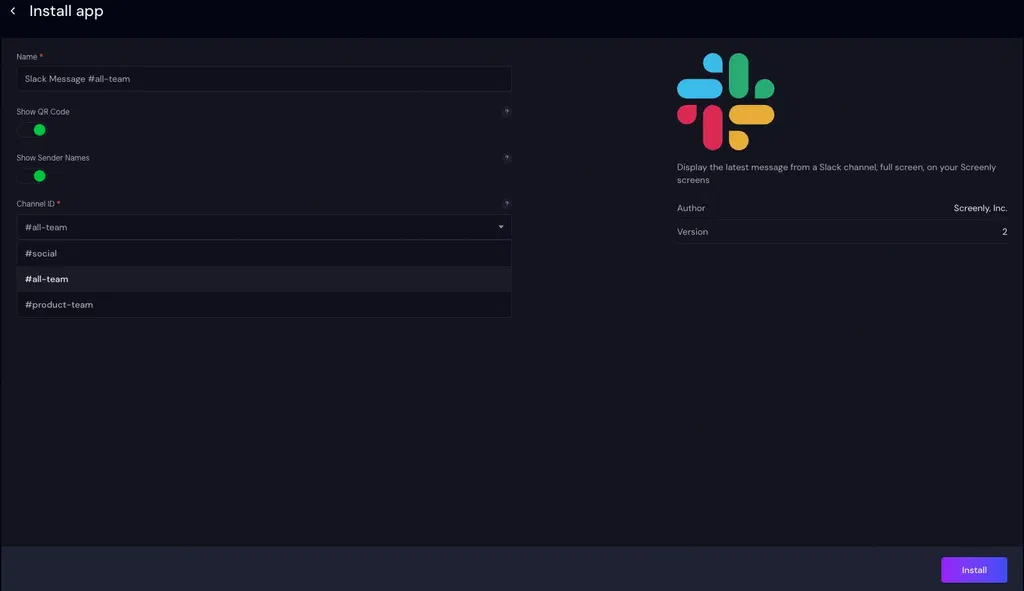
NOTE: Once the Slack integration is connected, your channels are listed automatically. Pick the channel whose latest message should appear on screen.
Advanced Settings
The following optional settings are available under Advanced when creating or editing an app instance:
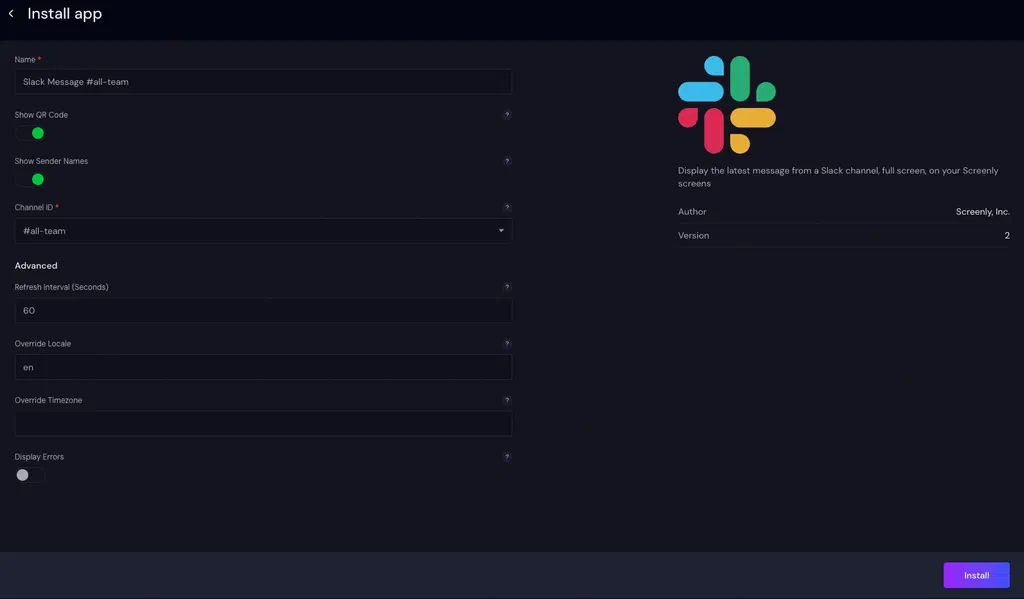
| Setting | Description |
|---|---|
| Refresh Interval (seconds) | How often to fetch the latest Slack message. Default: 60. |
| Override Locale | Language for the header clock/date and the message timestamp (for example en, fr, or de). Default: en. |
| Override Timezone | Timezone for the header clock/date and the message timestamp (for example Europe/London). Leave blank to use the screen’s location. |
| Display Errors | Show errors on screen for debugging. Default: off. |
Step 3: Add the app to a screen
- Add the app to a playlist.
- Assign that playlist to a screen.
In minutes, you’ll have Slack announcements showing on your display.