Instantly share Wi-Fi credentials on your digital signage screens with a lightweight QR code generator built for Screenly.
Guests connect in one scan
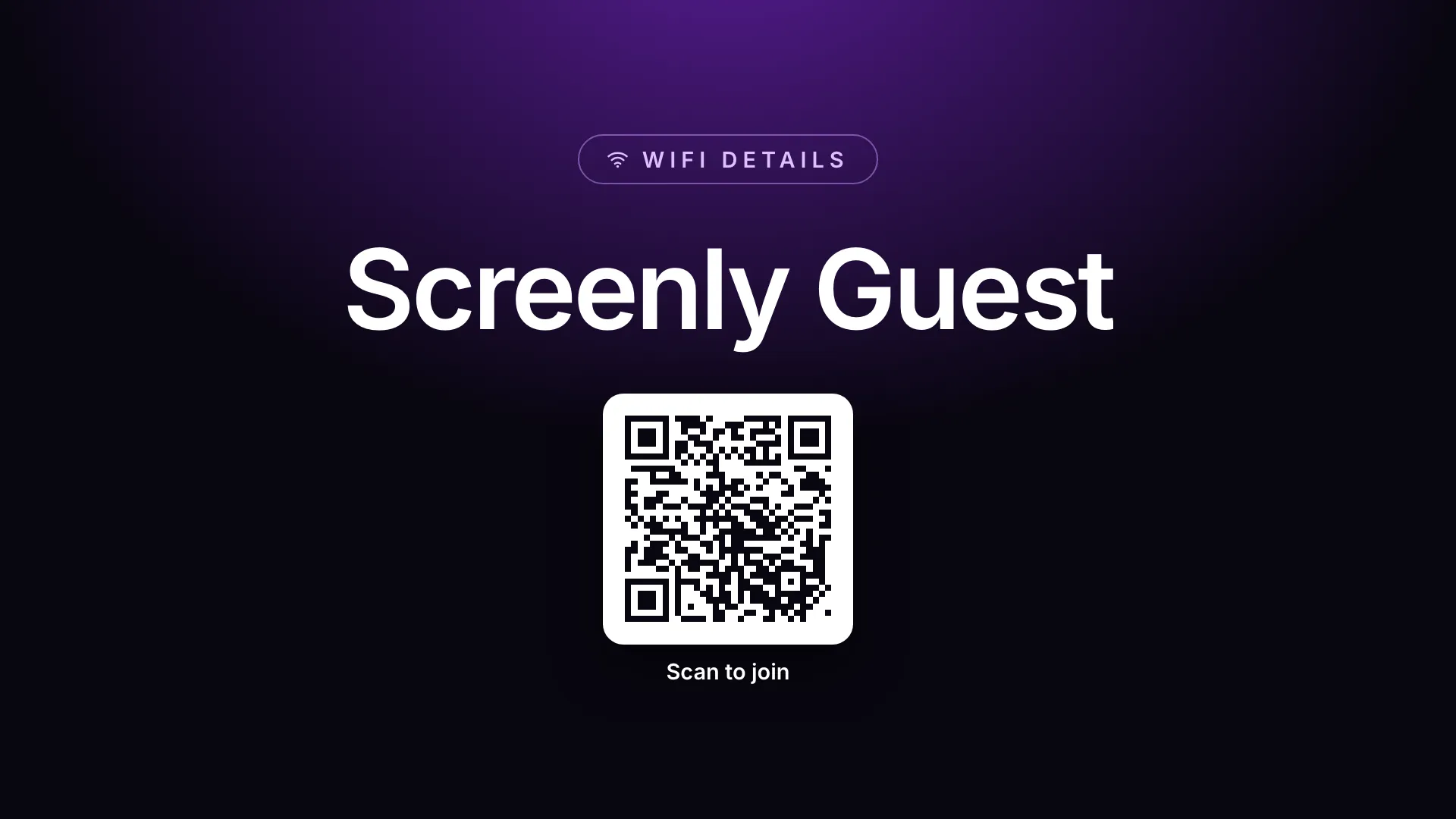
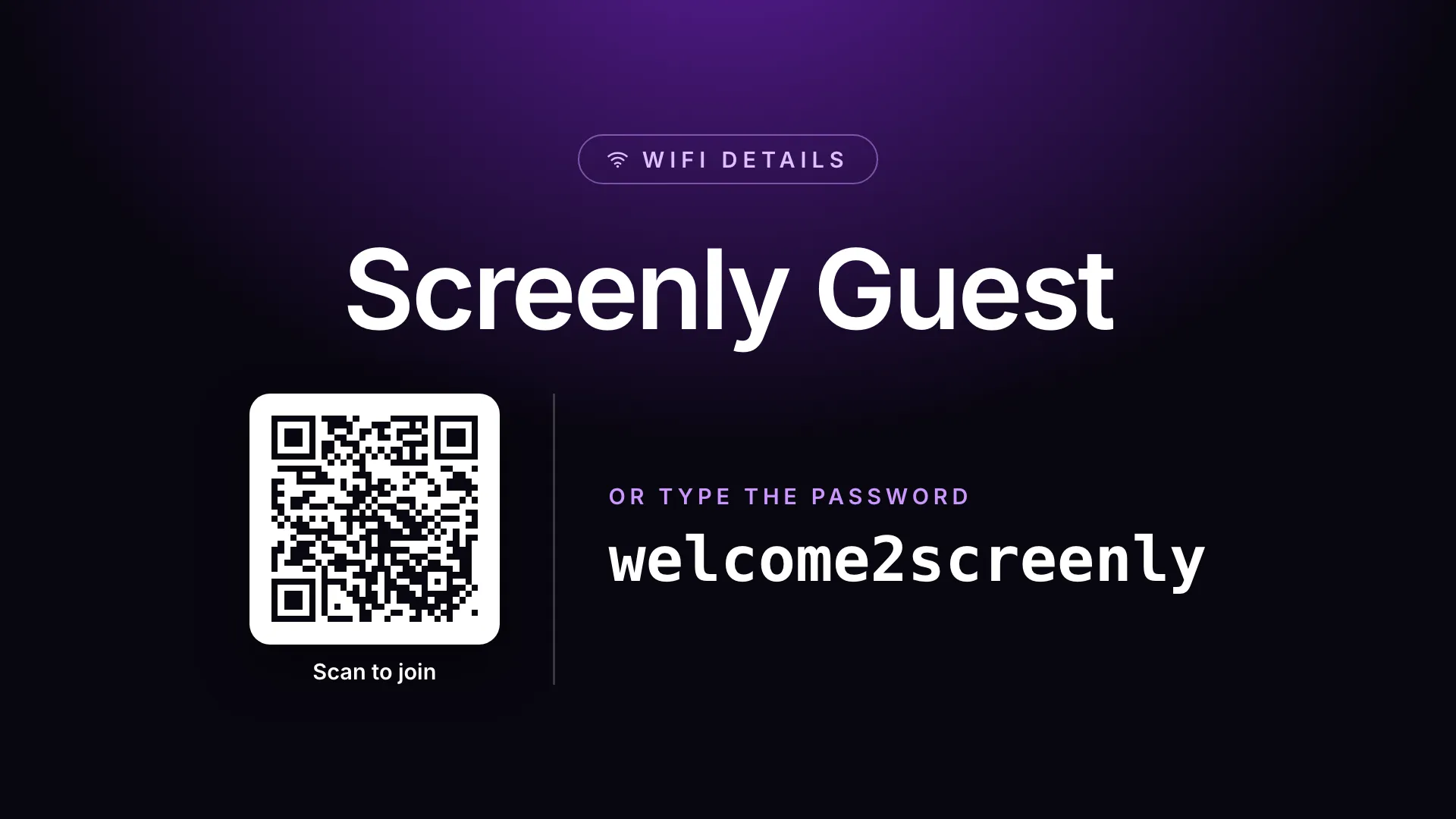
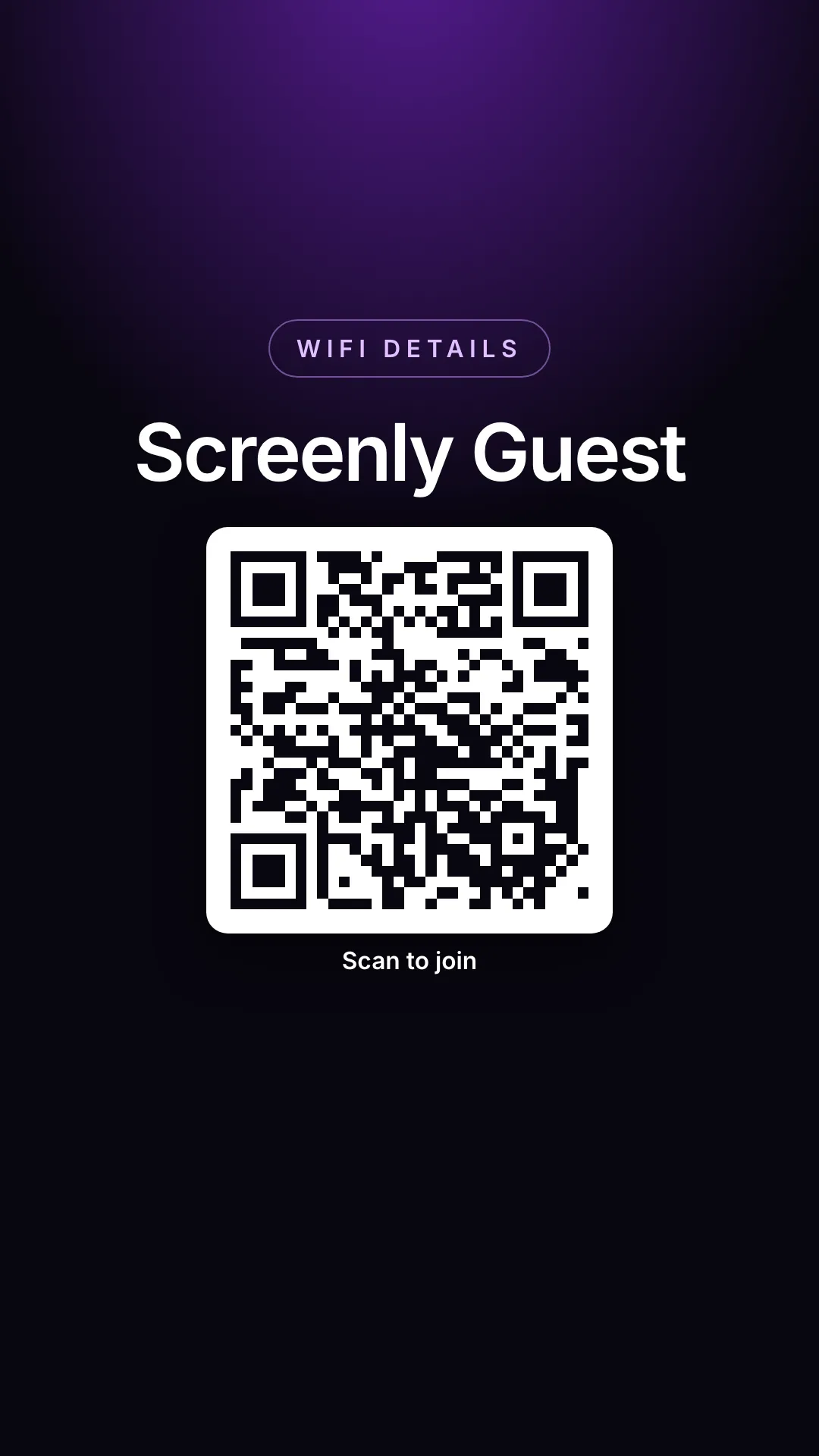
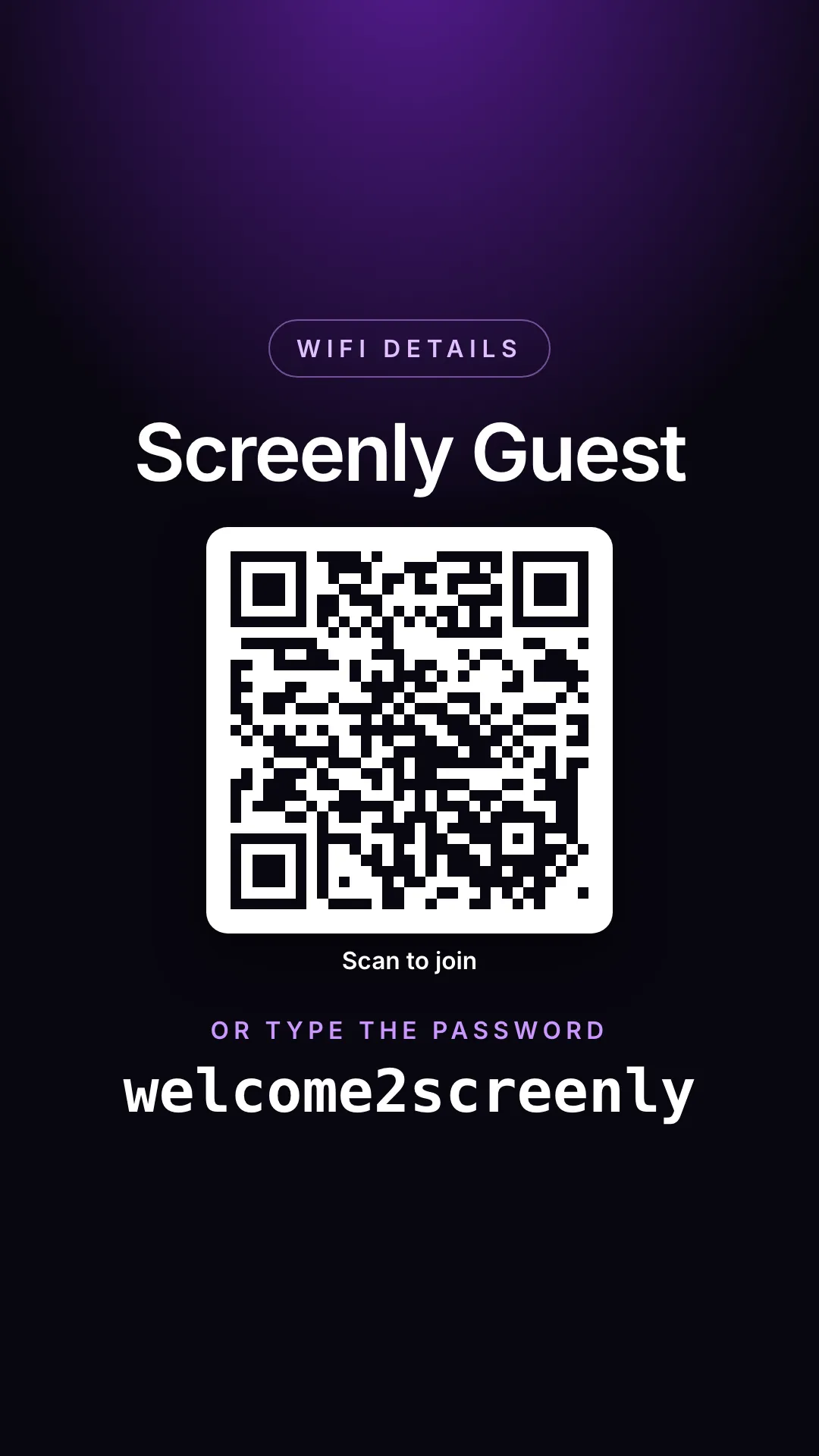
Guests scan the on-screen QR code with their phone camera to join the network automatically. The network name and, by default, the password are also shown as text for guests who’d rather type them in by hand. Turn off Show Password as Text if the password should only be readable by scanning the QR code, rather than by anyone glancing at or photographing the screen.
Why use Wi-Fi QR Share?
Perfect for lobbies, meeting rooms, coworking spaces, hotels, and retail: anywhere visitors need network access without hunting for a sticky note or asking reception.
Key features
- QR code encodes the full Wi-Fi connection string so phones can join in one scan
- Optional password text for guests who prefer to type credentials by hand
- Open-network support when there is no password
- Hidden SSID support for networks that don’t broadcast their name
- Custom header message, background, and text colours
- Localized labels (English, French, German, Spanish, Portuguese)
Configuration settings
| Setting | Description | Required | Default |
|---|---|---|---|
| Wi-Fi Network Name (SSID) | Network name shown on screen and encoded in the QR code (max 32 bytes) | Yes | - |
| Header Message | Message in the pill at the top of the screen (truncated past 60 characters) | No | WiFi Details |
| Wi-Fi Password | Stored as a secret. Leave blank for an open network | No | - |
| Security Type | WPA (WPA/WPA2/WPA3), WEP, or nopass (open) | No | WPA |
| Show Password as Text | Also display the password on screen for typing by hand | No | on |
| Hidden Network | Enable if the network doesn’t broadcast its SSID | No | off |
| Background Color | Hex code or CSS colour name for the screen background | No | #08060f |
| Text Color | Hex code or CSS colour name for on-screen text | No | #ffffff |
| Locale | Language for on-screen text (en, fr, de, es, pt) | No | en |
When Security Type is open (nopass), or the password is left blank, the app always renders an open-network QR code and shows an “Open network” badge, regardless of Show Password as Text.
Background and text colours fall back to their defaults if unparseable. Text colour only auto-switches when it would be effectively invisible against the background.
Display styles
The screenshot gallery shows both modes: password hidden (QR only) and password shown as text alongside the QR code, so you can pick the privacy level that fits your space.