What if you could manage all your digital signage with one command: “Update all lobby screens with the new promo playlist”?
With Screenly’s new Model Context Protocol (MCP) integration, that is now possible. We’ve added a new screenly mcp subcommand that gives AI assistants direct access to the Screenly API. This means Screenly can now be fully operated through AI platforms, making digital signage management more seamless and intelligent.
Introducing MCP support for Screenly CLI
Digital signage management often involves multiple dashboards and scripts, requiring significant manual coordination and engineering.
Today, we’re introducing MCP support in the Screenly CLI, a new capability that allows AI assistants such as Claude, Cursor, and other MCP-compatible tools to directly interact with Screenly’s infrastructure. With this update, Screenly becomes accessible through natural language-driven workflows while preserving the reliability and security of its existing API and CLI ecosystem.
By exposing the Screenly API as structured MCP tools, the Screenly CLI now acts as a bridge between AI agents and real-world signage operations.
It’s important to note that all access is scoped by your Screenly API token. This means the MCP server inherits the same permissions and restrictions as the authenticated user. AI assistants cannot perform any action beyond what your account is authorized to do, ensuring that existing access controls and security boundaries remain fully enforced.
What Is Model Context Protocol (MCP)
Model Context Protocol (MCP) is an open standard that enables AI tools to connect to external systems via structured, typed interfaces, allowing seamless, standardized integration beyond proprietary solutions.
MCP acts like a USB-C port for AI, providing a standardized way for AI applications to connect to external systems, moving beyond text prompts or custom integrations.
- Discover available actions
- Call APIs safely
- Exchange structured data
- Operate real systems with predictable behavior.
For Screenly, AI tools now manage screens, playlists, assets, labels, and Edge Apps using well-defined operations that our official API backs.
How Screenly CLI MCP Works
The new integration adds a built-in MCP server to the Screenly CLI version 1.1.0 or later and introduces a new subcommand, enabling users to leverage MCP’s unique device management and automation features directly from the CLI:
screenly mcp
At a high level, the architecture looks like this:
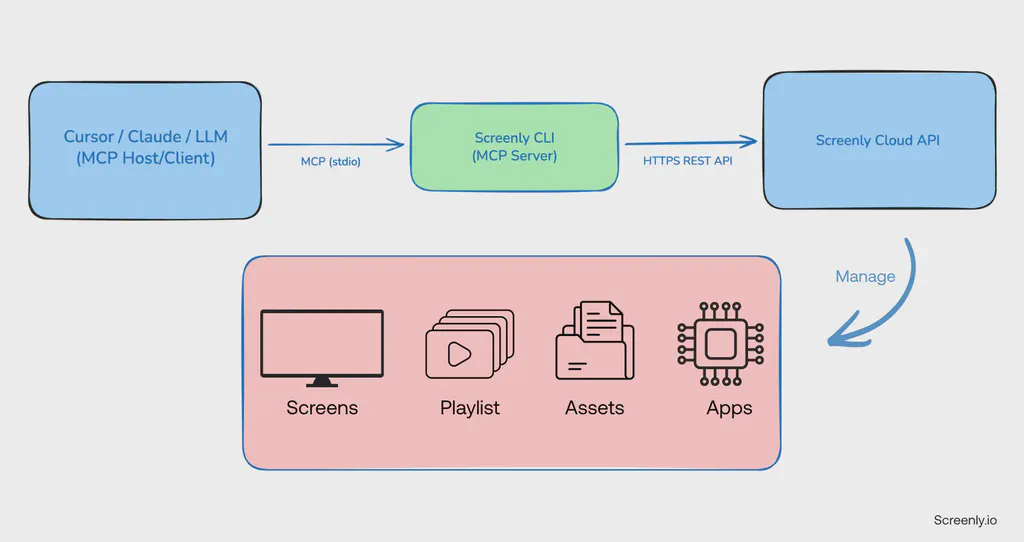
This design keeps your authentication local, avoids exposing additional network ports, and preserves the existing Screenly security model.
What This Means For Digital Signage Operators
For signage teams and IT operators, MCP unlocks a new operational interface layer.
Instead of navigating dashboards or writing scripts, teams can now:
Bulk Operations With Natural Language
Examples:
- “Assign the Holiday playlist to all screens labeled Retail.”
- “Show me all offline screens.”
- “Remove unused assets older than 90 days.”
Faster Campaign Updates
Marketing and content teams can:
- Upload new media
- Update playlists
- Trigger deployments
All through AI assisted workflows.
Reduced Operational Overhead
By automating repetitive management tasks, MCP helps:
- Reduce manual errors
- Speed up rollouts
- Improve operational consistency
What This Enables For Developers
For developers and platform engineers, Screenly CLI MCP becomes a programmable automation layer.
AI Assisted Tooling
You can now:
- Build internal AI tools around Screenly.
- Connect Screenly to agent workflows.
- Prototype operational bots
Getting Started
Using MCP with Screenly CLI is simple.
Step 1: Install or Update Screenly CLI
Make sure you’re running the latest Screenly CLI version 1.1.0 or later. You can follow this guide to install the Screenly CLI and log in with your Token.
Step 2: Install Cursor CLI (if you have not, you can also use other LLM tools like Claude)
Follow this guide to install Cursor CLI and log in.
Step 3: Create Cursor MCP config
Cursor supports global MCP config at:
macOS/Linux:
~/.cursor/mcp.jsonOr project only:
<your project>/.cursor/mcp.json
Global setup (works in all projects)
mkdir -p ~/.cursor
nano ~/.cursor/mcp.json
Paste this:
{
  "mcpServers": {
    "screenly": {
      "command": "screenly",
      "args": ["mcp"],
      "env": {
        "API_TOKEN": "YOUR_SCREENLY_V4_TOKEN"
      }
    }
  }
}
Notes:
- If you already rely on
~/.screenly, you can remove the env block entirely. - If
screenlyis not on PATH, replace"command": "screenly"with the full path (example:/usr/local/bin/screenlyor wherever it lives).
Step 4: Start Cursor CLI and Test
Open the CLI and type agent to start the Cursor CLI.
Now try prompts that force tool usage, for example:
- “List my Screenly screens.”
- “Show playlists and the number of items in each.”
- “Create a playlist called Test and add the latest uploaded asset.”
If everything is wired correctly, Cursor will discover the MCP server and call the relevant tools when needed.
Real World Use Cases for AI Assistants in Digital Signage
Enabling MCP in the Screenly CLI empowers AI assistants to execute digital signage operations through natural language, transforming routine workflows. Teams can automate common tasks, accelerate content management, and streamline large-scale screen operations without writing custom scripts.
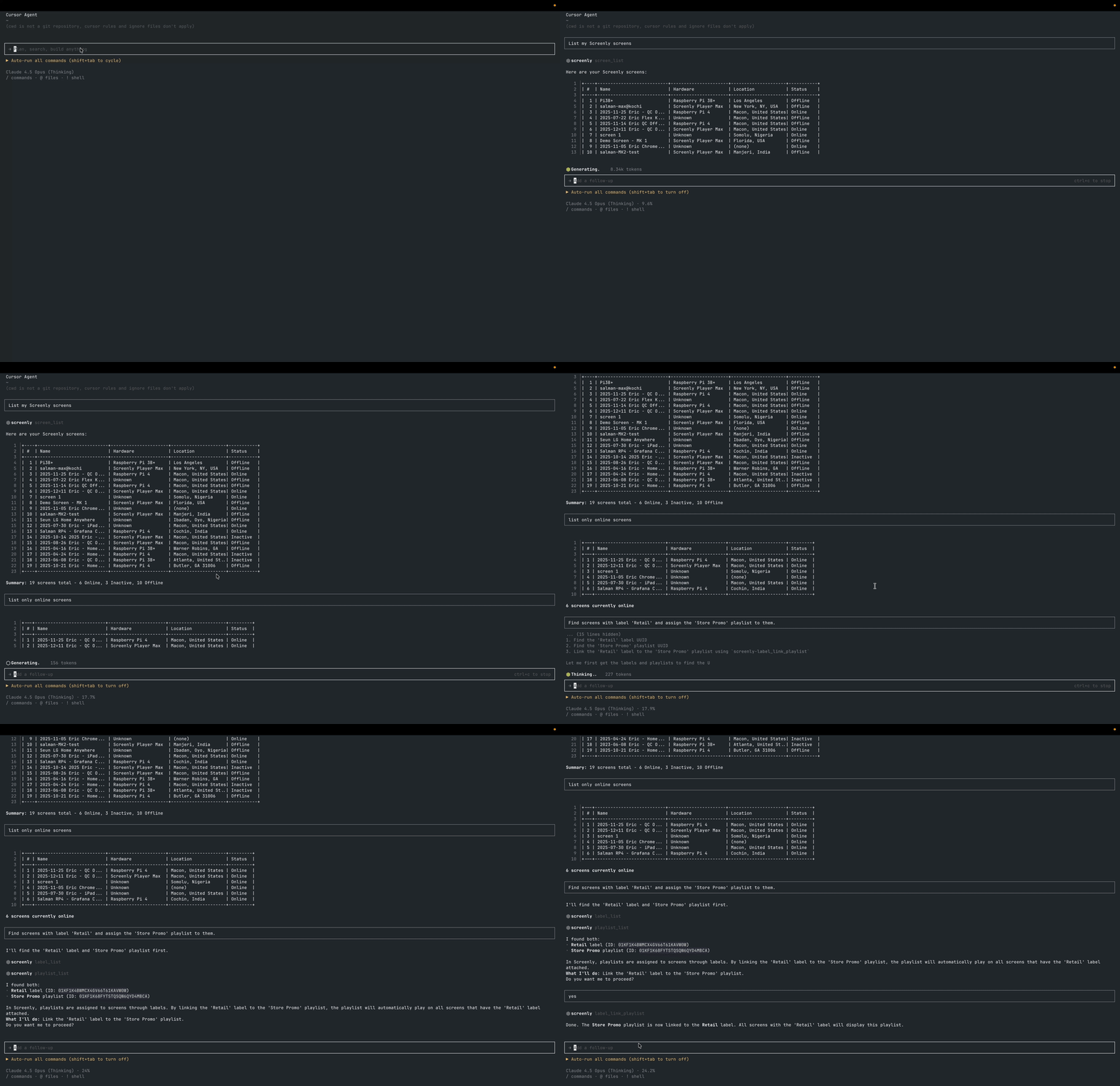
Example: Screen Inventory and Status Overview
agent chat "Using the Screenly tools, list all screens and show which ones are offline."
Example: Label-driven updates
agent chat "Find screens with label 'Retail' and assign the 'Store Promo' playlist to them."
Demo
What’s Next
This is just the beginning of a new chapter for AI-driven digital signage operations.
Introducing MCP in the Screenly CLI paves the way for smarter, faster signage management through intelligent assistants and automated workflows.
We look forward to the community using this to create next-generation operations, automate content, and power integration with AI platforms.
- Design fully automated content pipelines
- Integrate signage into broader AI-powered platforms.
If you’re interested in using AI with infrastructure, join us to build, share your ideas, and influence future developments.