
A lot of why screens managed via centralized digital signage software beat a printed poster, or a USB stick someone has to carry around to every screen, comes down to automation. Content updates itself, on schedule, across the whole fleet, from one place, without anyone touching the hardware.
That idea shouldn’t stop at content, though. If running your screens can be mostly hands-off, running your workspace should be too, less to remember, less manual upkeep, more of the product just handling itself. That’s the direction we keep pushing Screenly in, and temporary members are one more step.
Meet temporary members
A new Active until setting in Workspace settings > Members lets you turn any member into a temporary member, in two places:
- When you invite someone. Set an Active until date, and their access expires automatically the moment that day ends. Leave it blank, and access works like it always has.
- On any existing member. Add, change, or clear the Active until date at any time from the member’s row.
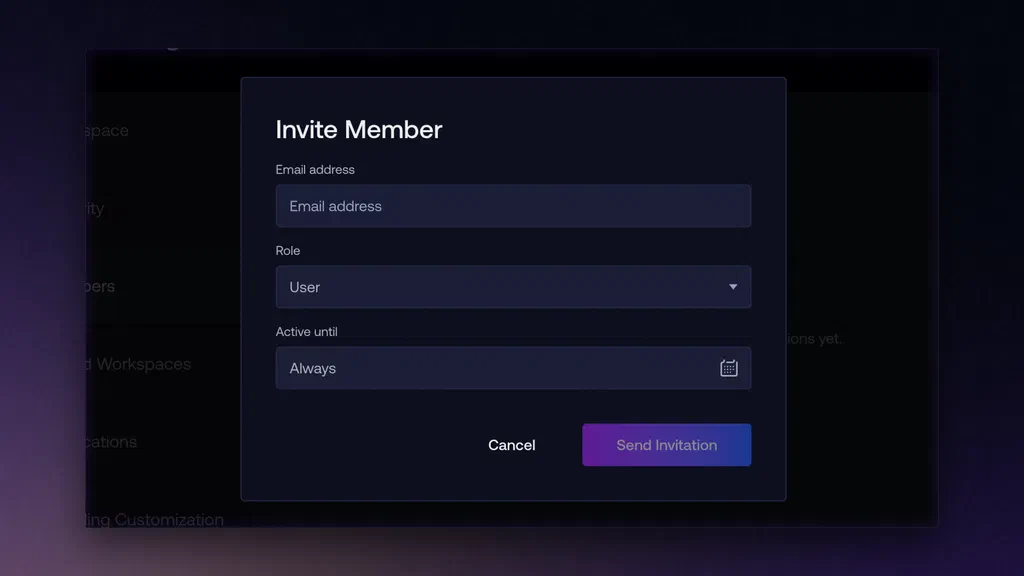
You can also disable a member outright, no date required, straight from the row menu.
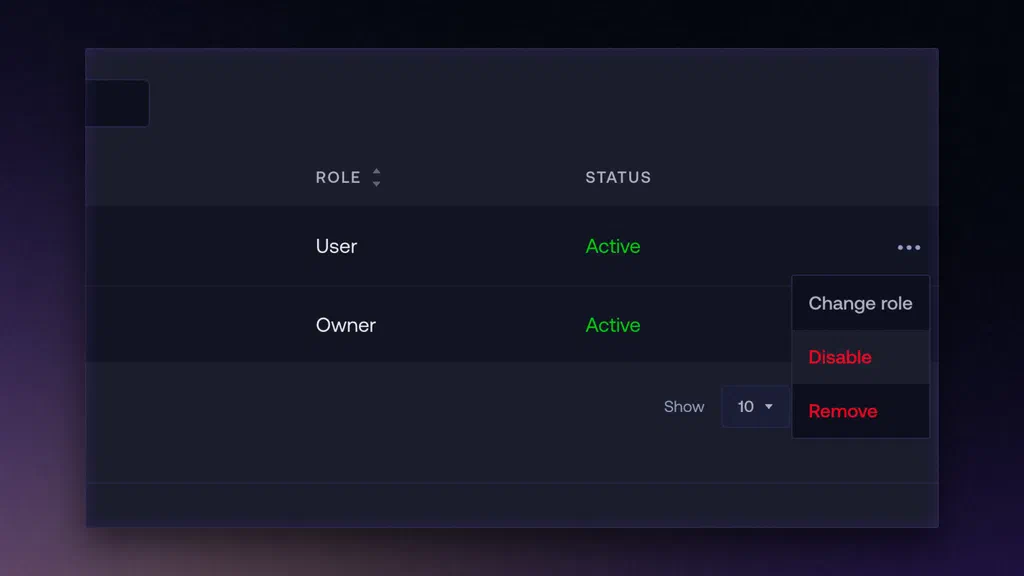
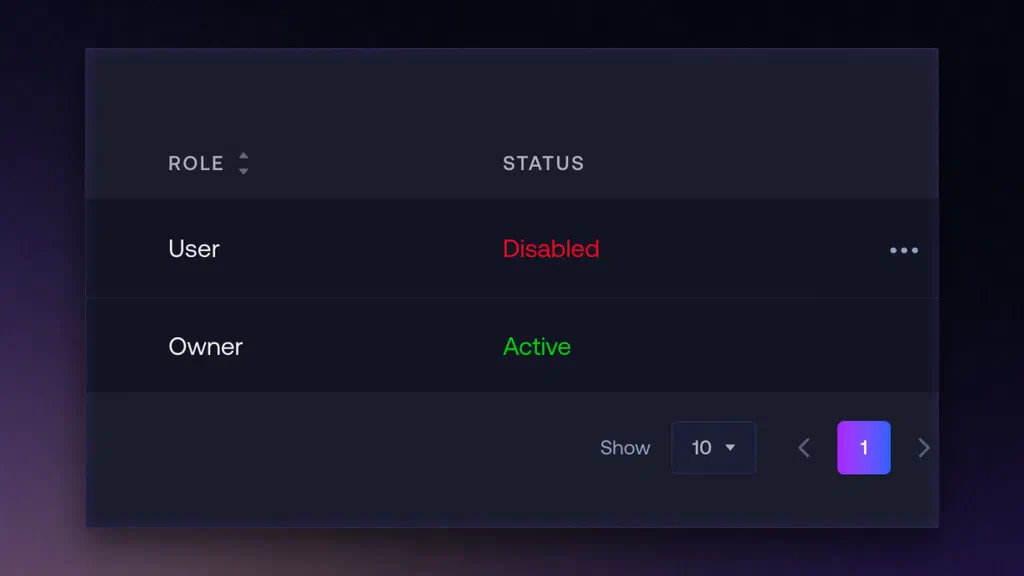
Once set, a member’s status shows up clearly in the Members table: green for active, orange with a date for “active until”, and red for disabled.
Why we built this
Teams aren’t static. Contractors roll off. Seasonal staff come and go. People leave the company, and someone has to remember to cut their access on the way out.
Until now, the only way to turn off someone’s access in Screenly was to remove them from the workspace outright. Making someone a temporary member gives you a lighter switch instead: set an Active until date once, and access ends itself on schedule, no one has to remember it.
How it looks in practice
Say you bring on an integrator for a short project, or a temp employee covering for someone on leave, a few weeks, then done. You make them a temporary member right when you send the invite, with an Active until date set to their last day. They get full access for as long as they need it, and it quietly ends on its own.
The same idea works for a contractor auditing a plant rollout at a manufacturing enterprise, or for offboarding at a finance or enterprise organization, where compliance needs proof that access ended the moment someone left, not whenever someone remembered to remove them.
What doesn’t change
Disabling a member is purely an access switch. Their screens, playlists, and content stay exactly where they are. Nothing gets deleted, reassigned, or touched. That also means it’s fully reversible: re-enable a member and they pick up right where they left off, no new invitation, no waiting for them to accept it, just access flipped back on, seat limits on your plan permitting.
One thing that can’t be disabled: the workspace Owner. That role is always protected.
A bonus if you’re on the Starter plan
Seat limits only apply on the Starter plan, so this happens to pay off there too: disabled members don’t count against your seat limit, so bringing on a contractor or seasonal hire no longer means finding room for them permanently. Make them a temporary member, let them do the work, and the seat frees itself up automatically once their Active until date passes, no need to remove anyone or upgrade your plan just to fit one more person for a few months.
Business and Enterprise already come with unlimited users, so seat limits aren’t a factor there, but the same automatic access control still applies.
Where to find it
It’s live today for everyone in Workspace settings > Members. If managing access for your team has ever meant a sticky note or a recurring calendar reminder, give this a try instead.