Product update
A simpler way to schedule your content
 514sid · · 6 min read
In Screenly, as in most digital signage software, a playlist is the link between your content and your screens: content goes into a playlist, the playlist is assigned to screens, and a schedule controls when it plays. By default it’s always active; a schedule narrows it down to specific dates, times of day, and days of the week, evaluated in each screen’s own local time. None of that behavior has changed.
What changed is how you set it up, and the difference is night and day. Scheduling used to mean building a small logic expression by hand, condition by condition, and hoping you assembled it right. Now you just describe when your content should play, in the same terms you’d use out loud, and Screenly shows you, in plain words, exactly what you’ve set up.
What it looked like before
The old Schedule tab was a condition builder. Each row was a condition, “the date”, “the time”, or “the weekday”, joined by “and” and “or” operators, with “all of” and “any of” groups that could nest up to three levels deep.
It was expressive, and it worked. But even a simple schedule, say, weekdays over lunch for two weeks, took several rows, two operators, and some care about how they combined. You were effectively writing logic, and like all logic, it was easy to get subtly wrong: an “or” where you meant “and”, a group nested one level off, and the schedule did something other than what you intended.
Worse, there was no way to check. The tab never told you what the combined result was, so the only way to know what a schedule actually did was to read the whole tree and work it out in your head. And nothing warned you if you had built one that could never match, so a mistake sat there quietly until someone noticed a screen showing the wrong thing.
Rules instead of logic
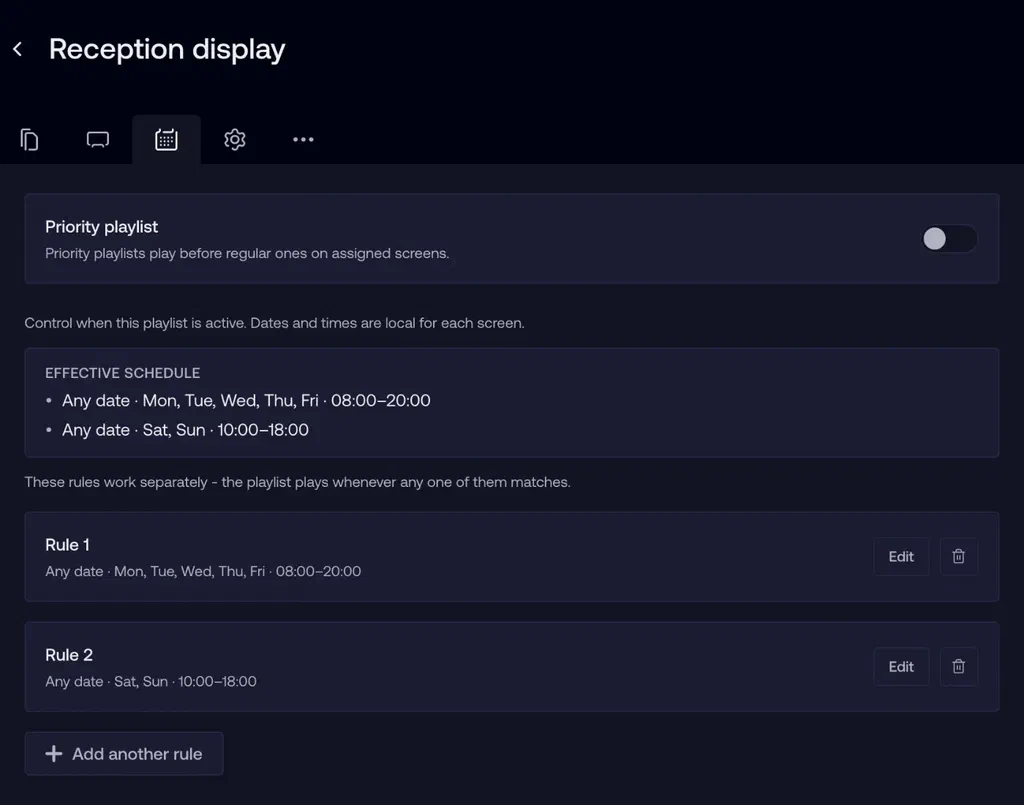
The Schedule tab now works in terms of rules, and a rule reads the way you think: play this content on these days, at these hours, within these dates. Within a rule, everything has to match. Add more rules, and the playlist plays whenever any one of them does.
That’s the whole model, and it’s genuinely all there is to learn. There are no operators to pick and no groups to nest, because the two combinations you actually need are built in. The lunchtime promo that used to take a hand-assembled tree of conditions is now one rule, filled in from three labeled sections, in a few clicks.
A guided editor
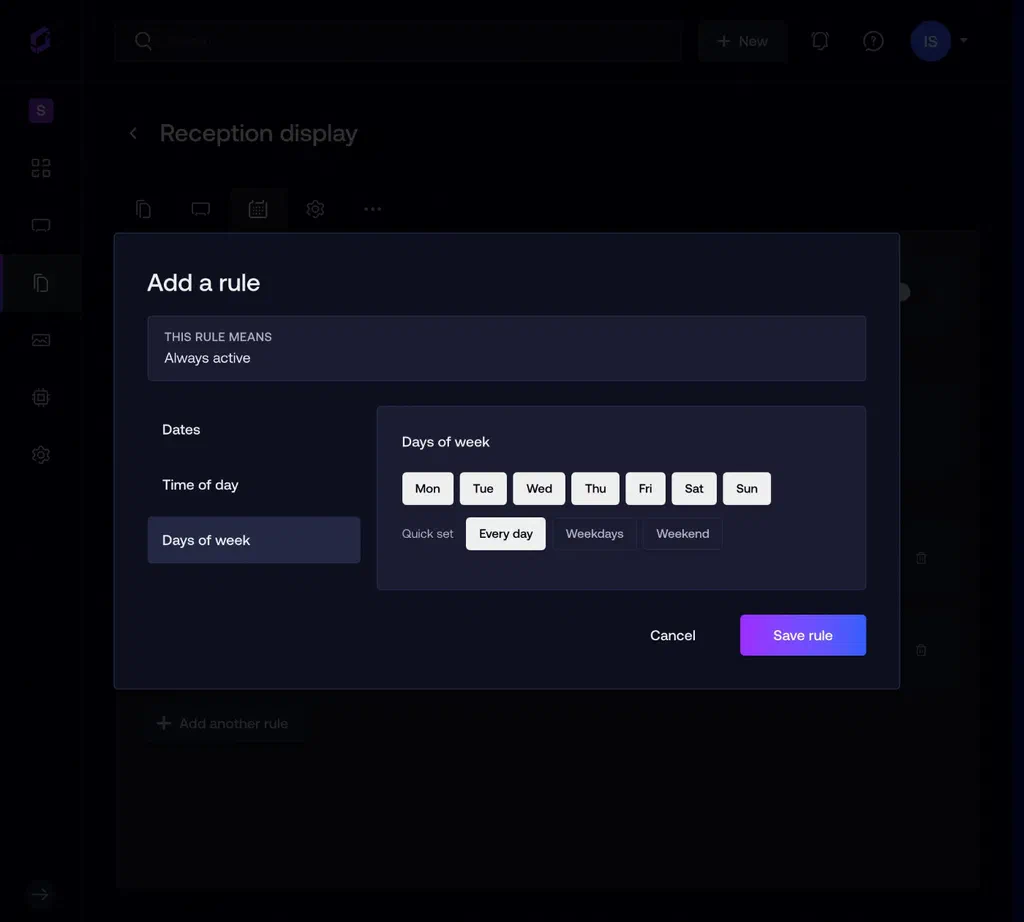
Each rule opens in a dialog with three sections:
- Dates. An optional start and end, plus “except” dates, blackout days for holidays when the playlist should skip.
- Time of day. All day, or specific hours.
- Days of week. Individual days, or one-click presets for Every day, Weekdays, and Weekend.
The editor also keeps you out of trouble. A time range can’t end before it starts, a rule has to include at least one weekday, and impossible schedules get flagged before they’re saved. If a schedule grows too complex to save, the editor says so and points you toward simplifying it.
You see exactly what you set up
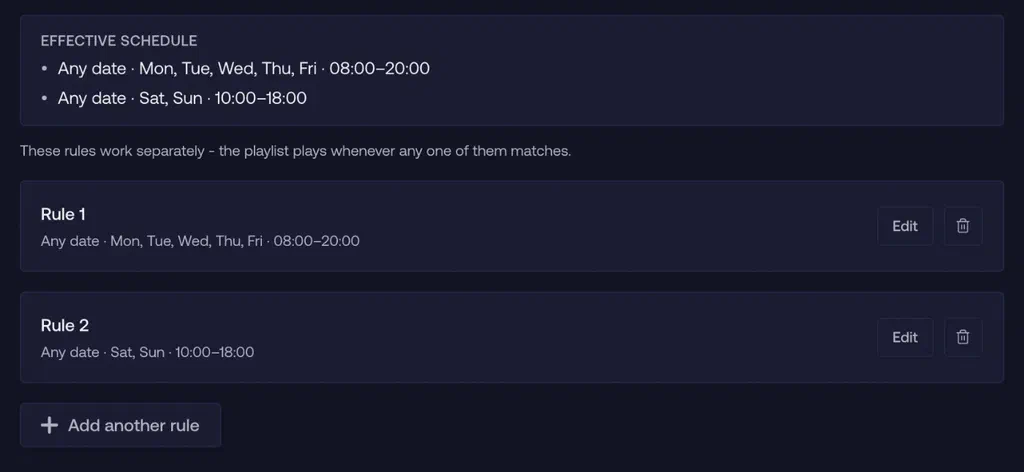
This is the part we think you’ll appreciate most. Under the rules sits an Effective schedule summary that spells out, in words, exactly when your content will play across all rules combined. No mental merging of conditions, no reading a tree, no saving and waiting to see what happens on a screen. You read one sentence, and if it matches what you meant, you’re done. If it doesn’t, you’ve caught the mistake before it ever reached a screen.
Statuses catch mistakes before your screens do
Every rule in the list shows its state: Active, Pending if it hasn’t started yet, Expired if its end date has passed, or Never plays for a rule that can’t ever match, like a date range with no eligible days left in it.
This is the fix for the quietest failure mode of the old builder: content that silently stopped playing, or never started, with nothing in the UI to explain why. Now an expired rule wears its badge right in the list.
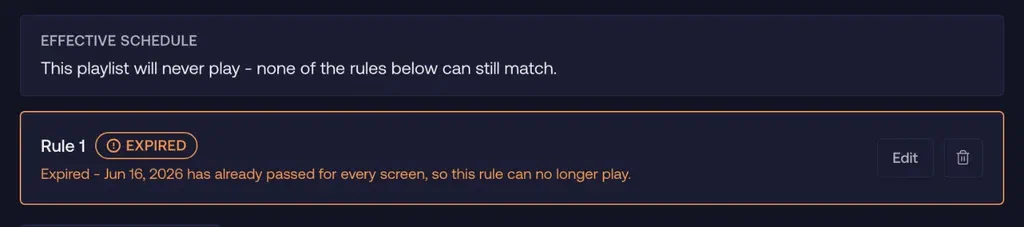
Statuses are also timezone-aware. Because dates and times are evaluated in each screen’s local time, a rule is only marked Expired once it has passed on every screen worldwide, and stays Pending only while it’s still upcoming everywhere. A fleet spread across timezones never sees a rule switch off early or late.
How it looks in practice
This is dayparting (showing different content in different parts of the day) without the setup that usually comes with it. Schedules that used to require thinking in trees now map one-to-one onto how you’d say them.
A lunchtime promo is one rule: weekdays, 12:00 to 13:00, for a two-week date range.
Store hours with different weekend hours is two rules working together: one for weekdays 9:00 to 17:00, a second for weekends 10:00 to 14:00.
A seasonal campaign that runs continuously except on a public holiday is a date range with a blackout date, no second rule required.
If you didn’t know: when two playlists on the same screen have overlapping schedules and neither is a priority playlist, they don’t compete, and the screen plays content from both during the overlap. That makes dayparting composable: keep a base playlist running all day, and let a lunch promo playlist simply join the rotation from 12:00 to 13:00. You layer playlists on top of each other instead of carving up the day into non-overlapping blocks, and each one stays simple. If you do want one playlist to take over completely, that’s what priority playlists are for.
What doesn’t change
Scheduling behavior is identical: dates and times are local to each screen, and any matching rule plays the playlist. Priority playlists work as before, playing ahead of and suppressing regular playlists while active.
API users keep full control. You can still set schedules directly through the API, and schedules more advanced than the visual editor can represent are shown read-only in the UI and remain editable through the API. Power users lose nothing.
Where to find it
The redesigned Schedule tab is live today on every playlist. With no rules, a playlist is always active and the tab says so plainly, meaning its content plays everywhere it’s assigned, all the time. If you’ve ever squinted at a nested condition tree wondering when your content would actually show up, open a playlist and add a rule instead.