Product update
Bring your Salesforce data to your screens
 Salman Faris · · 5 min read
Your CRM holds some of the most important numbers in your business: pipeline value, deals closed, quota attainment, and support response times. But that data usually lives in a browser tab that only gets opened when someone remembers to check it.
We’re excited to introduce the Salesforce Dashboard App for Screenly, a new integration that lets you display your Salesforce dashboards and reports live on any screen in your office, sales floor, or operations center.
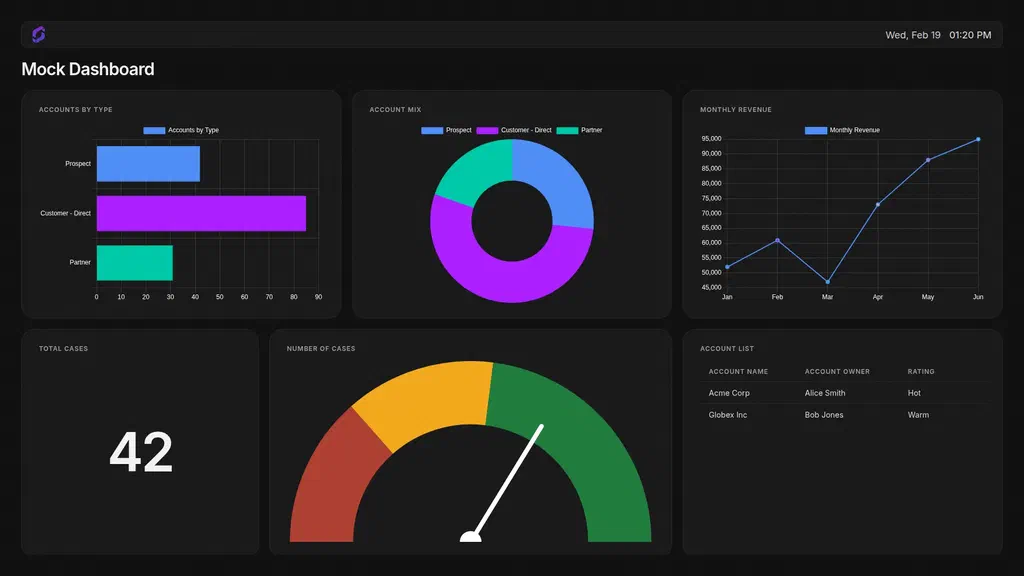
Why put Salesforce on your screens?
Dashboards are most useful when they’re visible. A leaderboard on the wall behind the sales team does more for motivation than the same report sitting in an email. A live pipeline view in the ops room keeps everyone on the same page without a meeting.
With this integration, your Salesforce data becomes part of your Screenly content rotation. It refreshes automatically and stays up to date with no manual screenshots or slide updates needed.
What you can display
The Salesforce Dashboard App supports both dashboards and reports from your Salesforce org.
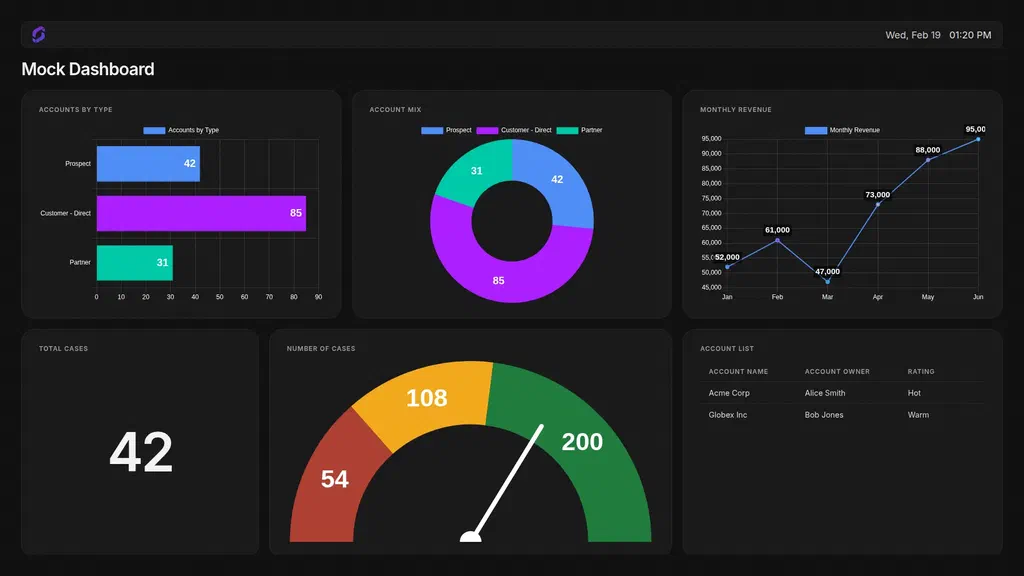
For dashboards, the app renders each component using its configured chart type: bar, column, line, pie, donut, gauge, and table components all display natively on screen. You can also enable Show Labels to display values directly on charts and gauges.
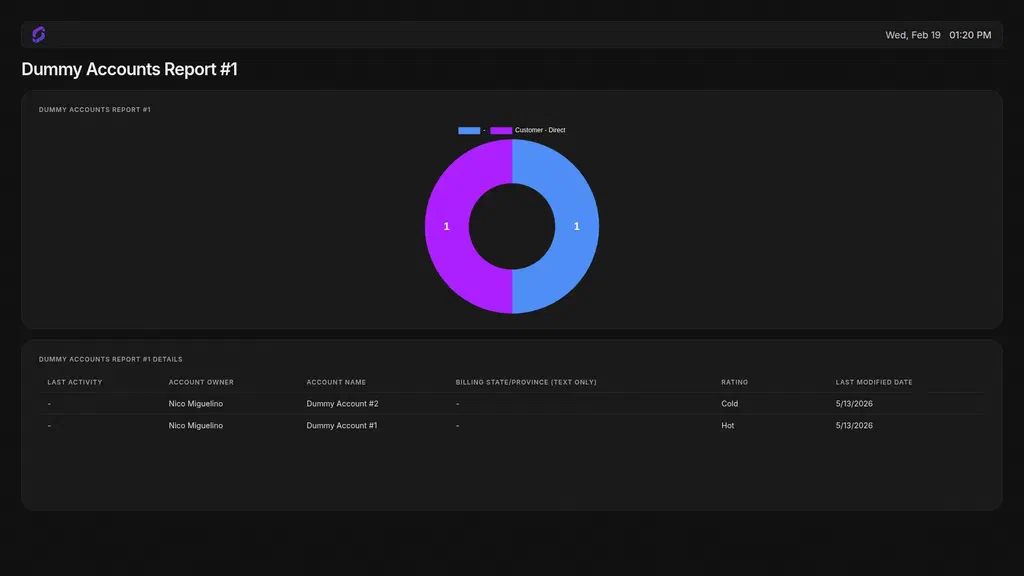
For reports, the app picks the best format automatically: a table for detail reports, a chart for grouped data, or a KPI card for single-value metrics.
Everything refreshes on a schedule you control, so the number on screen always matches what’s in your CRM.
Built with security in mind
Security was not an afterthought in how we built this integration. It shaped every decision, from how authentication works to what the app is actually allowed to do.
Digital signage screens are often in shared, semi-public spaces: office lobbies, sales floors, break rooms. They are not personal devices with a logged-in owner nearby. That context matters when you are putting business data on them, and it is something we take seriously at Screenly.
The problem with the browser tab approach
The most common way teams try to get a dashboard on a screen is to open a browser, log in to Salesforce, and leave the tab running. It works, but it creates a set of problems that are easy to overlook.
The device is now holding live credentials or a persistent session. If the session expires, the screen goes blank. If someone walks up and clicks around, they are inside a full Salesforce account. If the screen is ever compromised, so is the account. And there is no easy way to revoke access without changing the password or killing the session manually.
This is the approach we specifically chose not to take.
A native app, not a browser window
The Salesforce Dashboard App is a native Screenly Edge App. It is not a browser pointed at a URL, and it does not load the Salesforce web interface on the screen.
The app runs directly on the device, calls the Salesforce API to fetch only the data it needs, and renders the charts and tables itself. The screen never shows a login prompt, a navigation bar, or any part of the Salesforce UI. There is nothing for someone to click on, no session to hijack, and no account interface exposed on the wall.
OAuth without credentials on the device
Authentication uses Salesforce’s standard OAuth flow. When you connect the integration, Screenly receives an OAuth token issued by Salesforce. That token is stored securely by Screenly and used server-side to request data on the device’s behalf.
The device itself never handles your Salesforce credentials. There is no username, no password, and no session cookie sitting on the screen. If you revoke access from within Salesforce, the token is invalidated immediately and the app stops receiving data.
Read-only by design
The Screenly package installed in your Salesforce org is scoped to read-only access. The app can fetch dashboards and reports to display them. It cannot create, update, or delete anything in your org, and it cannot access data outside the scope of what was authorized during setup.
This is intentional. A screen displaying your pipeline should never have write access to it.
We built the Salesforce Dashboard App this way because we believe the right way to put business data on a screen is one that your IT and security teams would actually approve. If you want to dig into the technical details, the source code is open on GitHub.
Getting started
Setup takes just a few minutes:
- Your Salesforce admin installs the Screenly Integration package in your org (one-time setup).
- The Screenly account owner connects the integration under Settings > Integrations.
- From the App Store, any team member can install the Salesforce Dashboard App, pick a dashboard or report from the dropdown, and assign it to a screen.
Once the integration is connected, your dashboards and reports populate automatically in the app. No IDs to copy, no URLs to build.
For a full walkthrough, see the Salesforce Dashboard App documentation.
Available now
The Salesforce Dashboard App is available today in the Screenly App Store. If you’re already a Screenly customer, go to Settings → Integrations to connect your Salesforce org.
Not on Screenly yet? Start your free trial and get your first screen set up in minutes.
Have a question or feedback about the Salesforce integration? Reach out to us at [email protected] and we’d love to hear how you’re using it.