
Slack is where teams post the updates that matter: shift changes, safety alerts, “we hit the number,” the message that needs to reach people who are not sitting at a laptop. The problem is that Slack lives in a browser tab or a phone. If someone is on the warehouse floor or the sales floor, they miss it until someone tells them—or until they happen to check.
The new Slack Messages app puts the latest message from a channel of your choice up on the screen, full screen, updated automatically. No one has to be logged into Slack at the display, and no one has to remember to refresh anything. Like everything else in your digital signage system, it runs through playlists and schedules you already control.
What it does
Connect your Slack workspace, pick a channel, and deploy. The app checks for a new message on a schedule you set, so the screen always shows the latest post without anyone touching it.
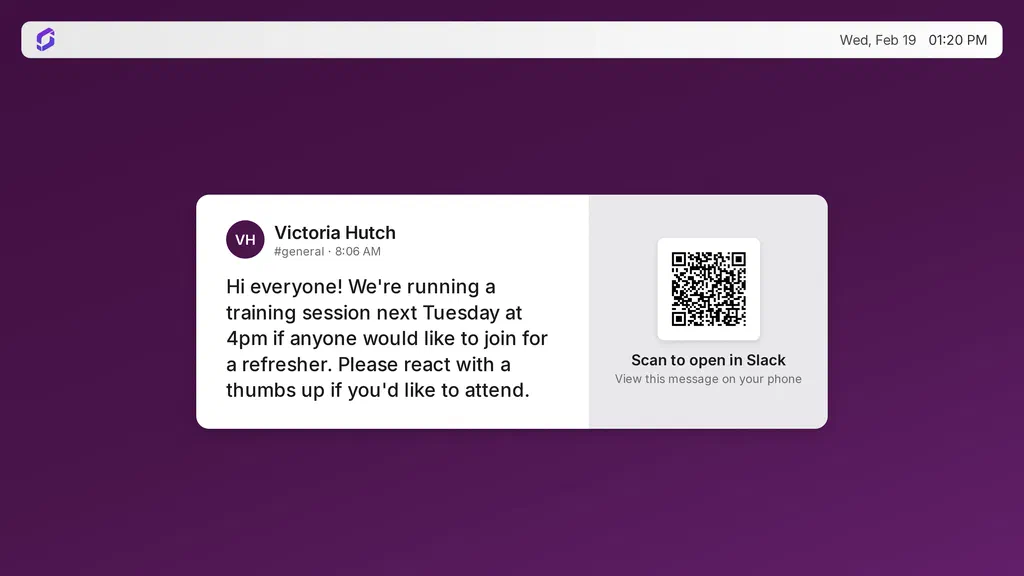
This is built for sharing announcements, for example a channel dedicated to a set of screens, rather than for following a busy, high-traffic channel. Each refresh shows:
- Message text: the announcement, full screen
- Current time: a header clock and date
- Sender name and channel (optional): who posted the message and which channel it came from, shown together with the message timestamp
- QR code (optional): a scan-to-open link back to the message in Slack
The header clock and the message timestamp share the same locale and timezone, so the two always agree.
Built on a proper Slack integration
The app connects to Slack the right way: you authorize the Screenly app in your Slack workspace once, and Screenly uses that connection to fetch the latest message from the channel you pick. There is no browser window kept open on the device and no Slack session sitting on hardware that anyone in the room can access, just a native Screenly app fetching messages on the schedule you set.
Getting started
Setup happens in three steps:
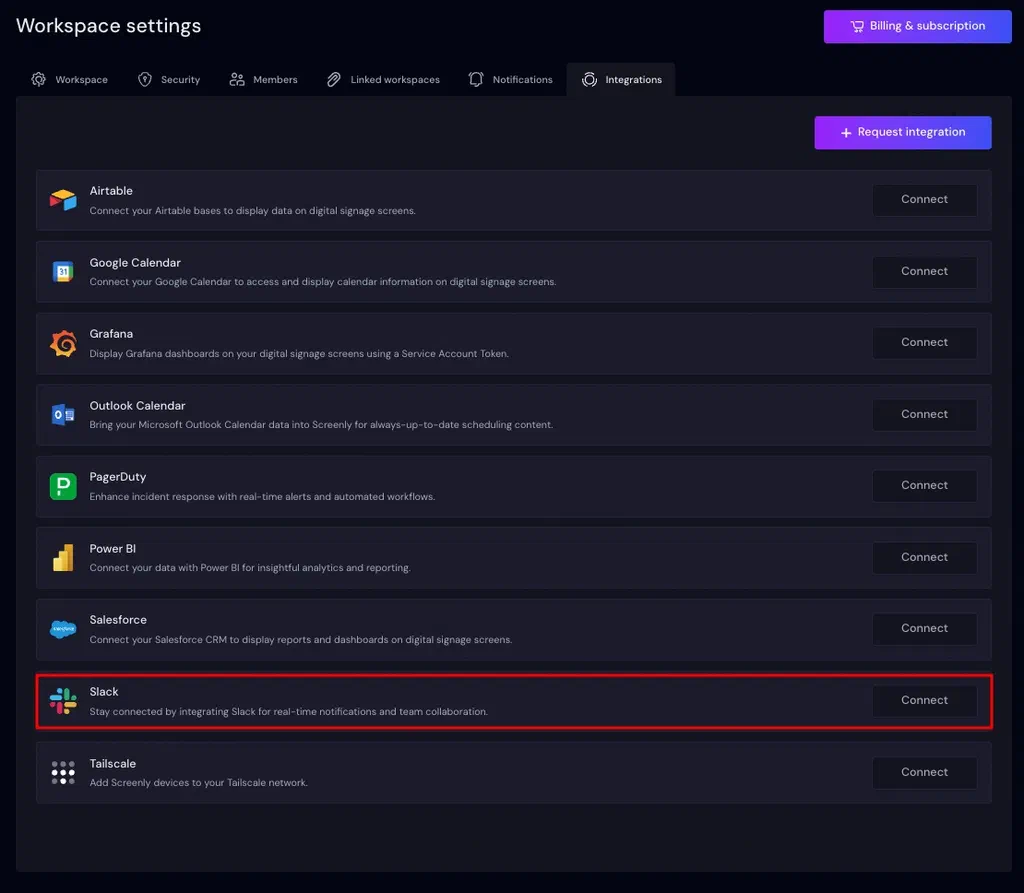
- Connect Slack. In Screenly, go to Settings → Integrations and click Connect next to Slack. Slack will show an authorization screen. Review the permissions and click Allow to install the Screenly app in your workspace. This is a one-time step per Screenly account; once it’s done, anyone on the team can install the app and pick a channel.
- Install the app. Open the App Store, search for Slack Messages, and click Install. Give it a name, choose the channel from the dropdown (no need to look up a channel ID), and decide whether you want the QR code and sender name turned on. Both are on by default. Under Advanced, you can adjust the refresh interval, locale, and timezone, or turn on-screen error messages on for debugging.
- Add it to a screen. Add the app to a playlist and assign that playlist to a screen.
That’s it. In a few minutes, Slack announcements are showing on your display, refreshing on their own.
For a step-by-step walkthrough, visit the Slack Messages app documentation.
Available now
The Slack Messages app is available now in the Screenly App Store, free on all plans. If you’re new to Screenly, start a free trial to try it out.
This is the latest in a run of apps that bring the tools your team already uses onto the screen without asking anyone to babysit a browser tab. If you missed them:
- Live TradingView charts on your screens
- From Airtable base to digital signage in minutes
- Bring your Salesforce data to your screens
Have questions about setting it up? Reach out to our support team, we’re happy to help.