A Raspberry Pi 4 stuck on a white screen, or a Raspberry Pi 5 showing a black screen with a blinking cursor, usually has an out-of-date bootloader rather than a bad image.
The bootloader lives in the EEPROM on the board itself, not on the SD card, so rewriting the ScreenlyOS image does not change it. It has to be updated separately, once per device.
This applies only to the Raspberry Pi 4 and Raspberry Pi 5.
With Raspberry Pi Imager
Use this if you have a spare SD card and another computer. It writes a small update tool to the card, which the Pi runs once at boot.
Download Raspberry Pi Imager and open it.
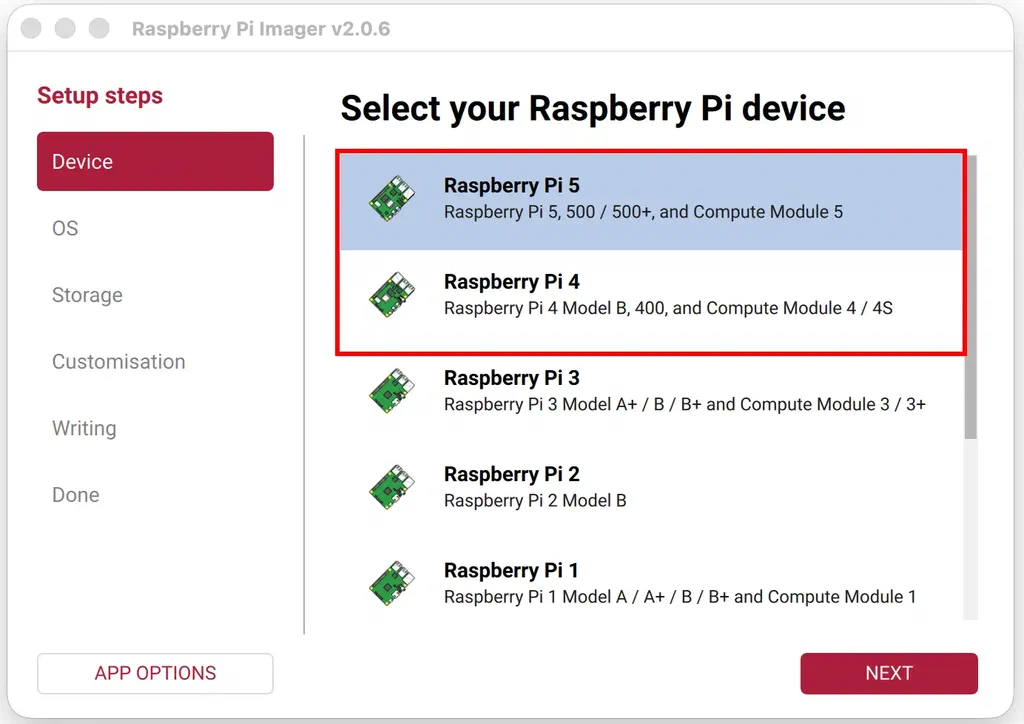
Click Choose Device and select your model, Raspberry Pi 4 or Raspberry Pi 5.
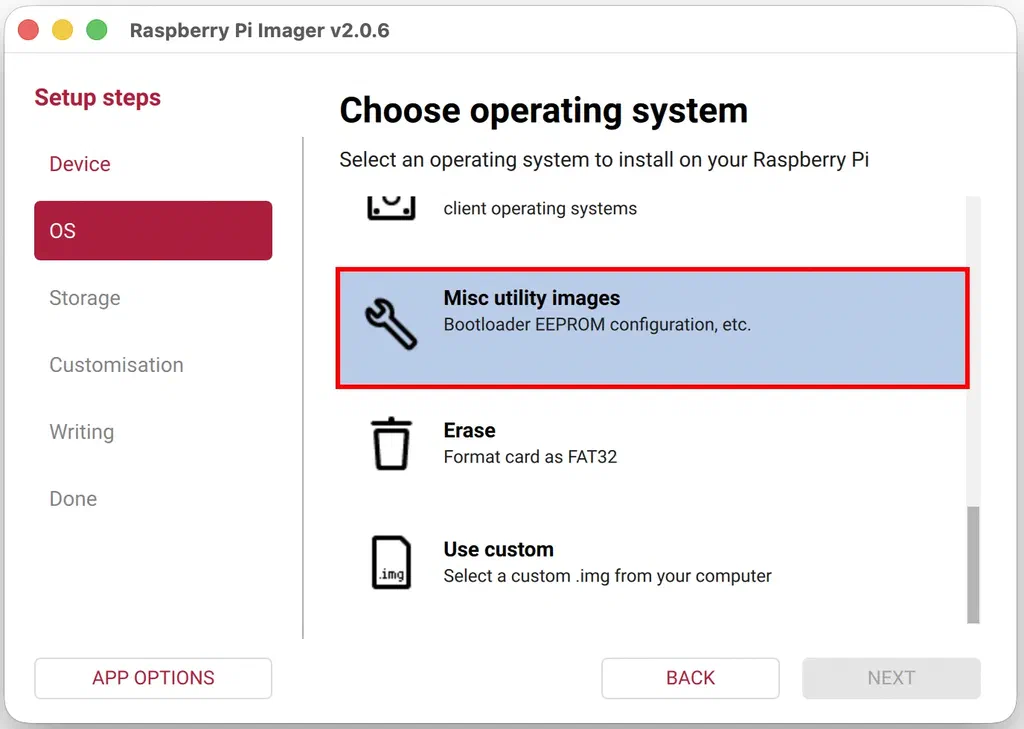
Under Choose OS, select Misc utility images.
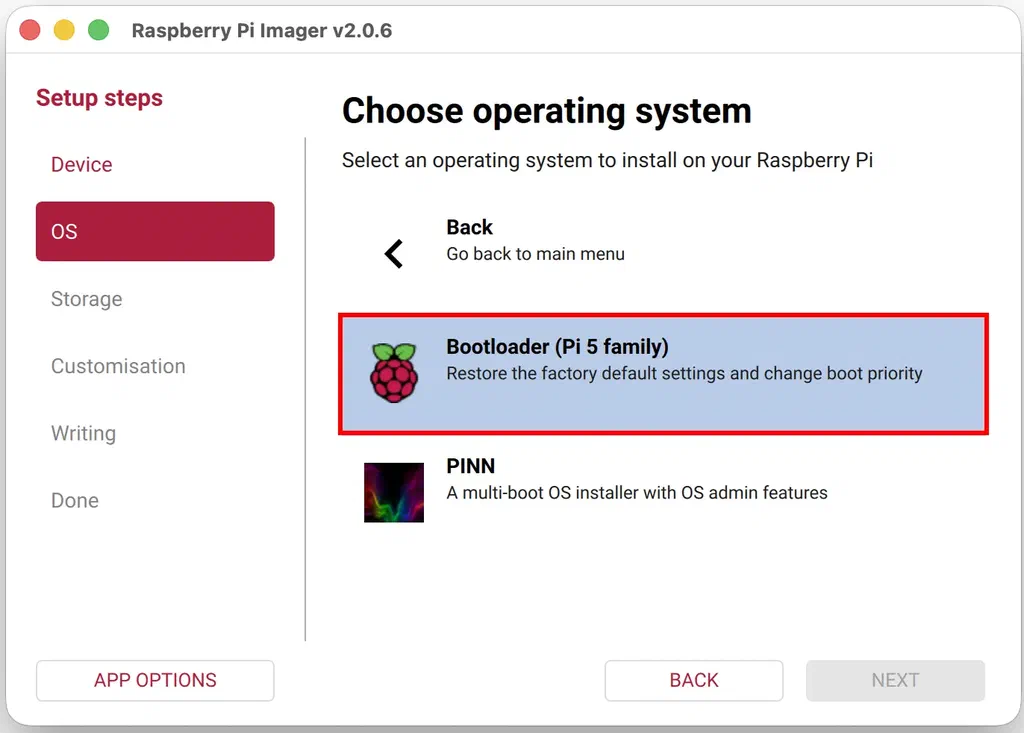
Select Bootloader, for the Pi 4 or Pi 5 family to match your device.
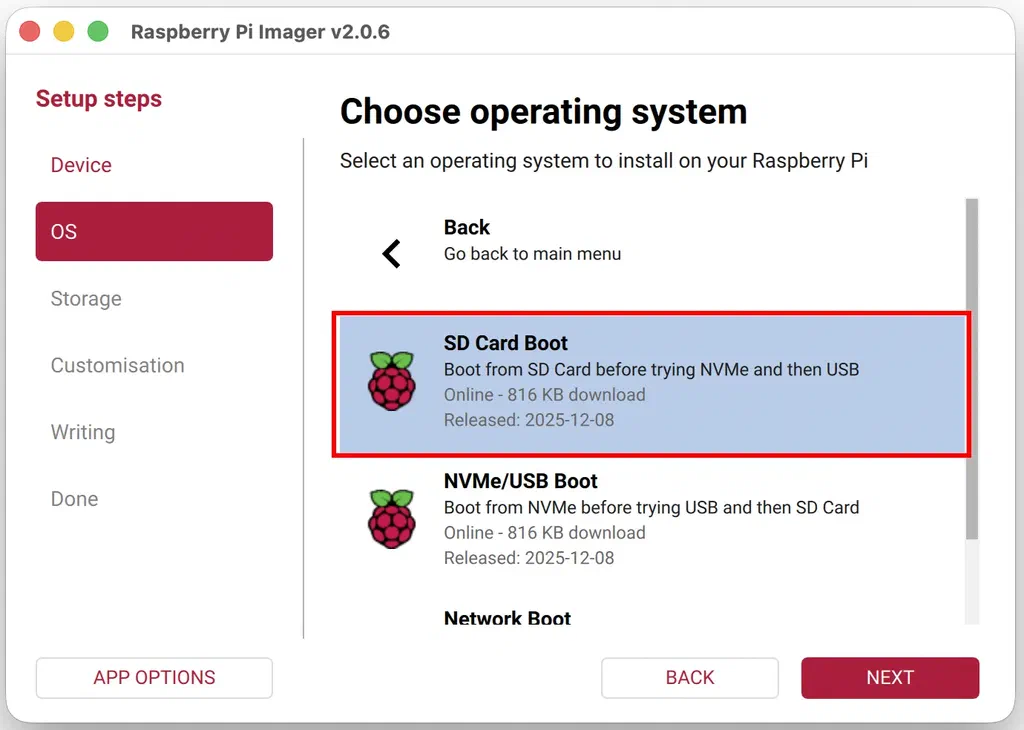
Choose SD Card Boot.
Under Choose Storage, select your SD card, then click Write.
Put the card into the powered-off Raspberry Pi and turn it on.
Wait at least ten seconds. A steadily blinking green activity LED and a green screen on the display mean the update worked.
Power the Pi off and take the card out.
Now write ScreenlyOS to the card as usual. See Write the image.
From the terminal
Use this if you have no second SD card, or you would rather work on the device itself.
Write the latest 64-bit Raspberry Pi OS to a card with Raspberry Pi Imager.
Put the card in the Pi, boot it, and complete the first-run setup.
Open a terminal and check for an update:
sudo rpi-eeprom-updateIf one is available, the output names the current and latest versions:
*** UPDATE AVAILABLE ***
BOOTLOADER: update available
CURRENT: Tue Apr 26 10:24:28 UTC 2022
LATEST: Wed Jan 11 17:40:52 UTC 2023
Install it:
sudo rpi-eeprom-update -a
Once it finishes, write ScreenlyOS to a card and continue with Write the image.
The bootloader update is stored on the board, so you only do this once per device. A Pi that has been updated keeps the new bootloader through every later ScreenlyOS reinstall.