A digital signage app is the easiest way to get content on your screens, in particular for content that displays changing data. Instead of designing a slide that shows the weather, the time, a data dashboard, or a rotating feed, you add an app, point it at your account, and it renders the content to your screens and keeps itself current.
Apps are where signage stops being a slideshow and starts being useful infrastructure. This page explains what signage applications are, the kinds of content they can put on your screens, how Screenly’s app system works, and how to judge whether an app will still be doing its job in a year.
What is a signage application?
A signage application is a small piece of software that generates screen content automatically, even as the content data changes. You configure the digital signage app once, and it does the ongoing work. A menu app lets staff change prices and items without touching a design tool, and it can even automatically update with dynamic pricing from your database. A weather app shows tomorrow’s forecast without anyone editing a slide. A data dashboard app pulls live numbers from the tools your team already uses.
The difference from ordinary content is maintenance. An uploaded image is correct on the day you upload it. An app is correct every day after that too, because it fetches, formats, and refreshes its own content. That is why most mature signage deployments end up running a mix of both, with static content for what rarely changes and applications for everything that does.
What apps can put on your screens
Signage applications cover a lot of ground, from business data to everyday context for the people walking past. These are the categories that show up most in real deployments.
Dashboards and business data. Apps connect screens to the tools your numbers live in. The Grafana app, the Power BI Edge App, and the Salesforce Dashboard app bring live dashboards to the wall, and our dashboard signage overview covers this whole category in depth.
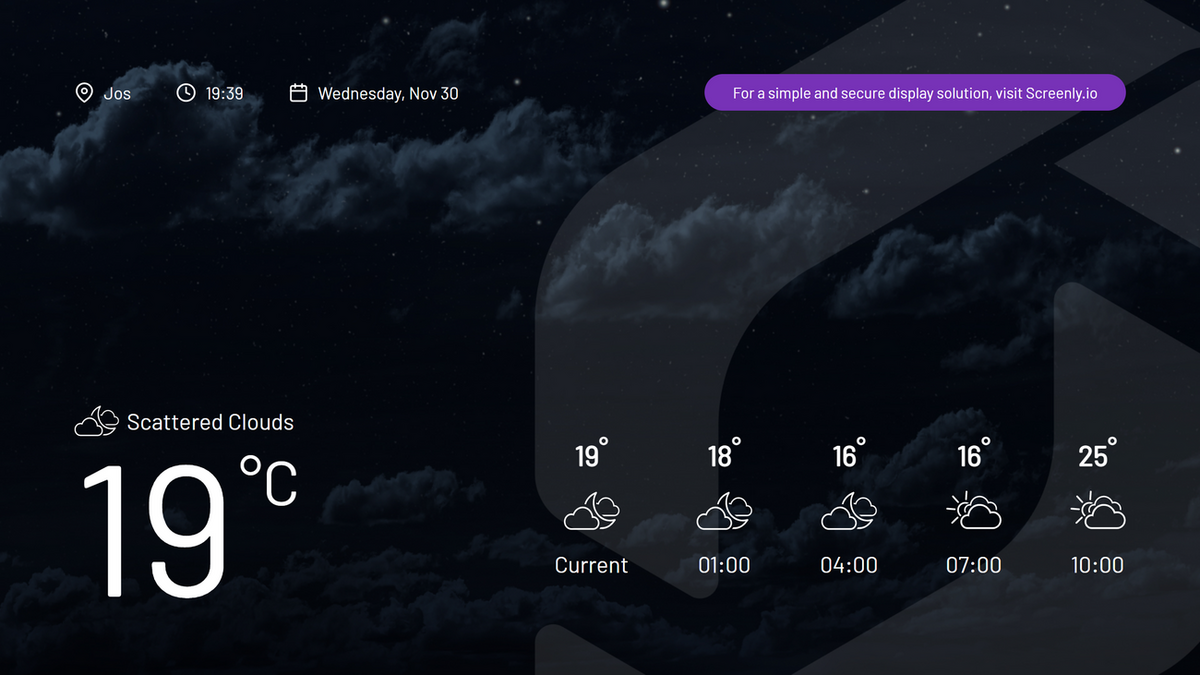
Time, weather, and daily context. Clock and weather apps are the workhorses of lobby and workplace screens. They are trivial to set up and they quietly make a screen feel current all day.
Calendars and schedules. The Google Calendar and Outlook Calendar apps put shared schedules where teams and visitors can see them, from meeting rooms to common areas. Paired with announcement content, they turn a screen into a self-updating information board.
Food service displays. The menu board app renders menus that staff update through a simple interface rather than a design tool.
Live web content. Beyond packaged apps, any page that renders in a browser can be shown as content, which covers countless tools that don’t have a signage app of their own.
Staging and demo content. The Demo Dashboard app fills screens with realistic auto-refreshing data, which is useful for testing layouts and proving a deployment before real integrations are wired up.
The full, current catalog lives in the Screenly Apps library, and it is also rendered at the bottom of this page. If you think of screens as layouts to fill in rather than tools to connect, the same catalog is organized that way on our digital signage templates page.
How Screenly Apps work
Screenly Apps behave like any other content in your account. You pick an app from the library, fill in its settings, and assign it to screens and playlists exactly as you would an image or a video. The app then renders on the player and keeps its content fresh on its own schedule.
Because apps run through the same platform as everything else, they inherit the properties that matter. Playback is cached on the device, so screens keep playing through internet outages, and live-data apps resume fetching fresh data when the connection returns. Scheduling, playlists, and permissions all apply to apps the same way they apply to any content. The platform behind them is ISO 27001 and SOC 2 Type II certified, so apps inherit that security posture too.
Edge Apps, for the applications you build yourself
When no ready-made app fits, Edge Apps let technical teams build exactly what they need. An Edge App is your own code running directly on the player, which makes it the right tool for authenticated data sources, custom rendering, and content driven by internal systems. The Screenly API completes the picture by letting your systems manage screens and content programmatically. Our post on digital signage widgets shows how this full-screen approach replaces the cramped widget grids of older systems.
This is development work by design. Teams that want a signage application behaving precisely their way get full control, and teams that do not write code stay happily inside the app library and live web pages.
Choosing signage applications that hold up
Here is a quick evaluation checklist for choosing apps that will serve your screens.
Offline behavior. Ask what the app shows when the network drops. Cached playback should continue, and the app should recover cleanly when connectivity returns.
Authentication. Apps that touch business data should handle credentials properly rather than relying on public share links for sensitive content.
Configurability. The app should let you match your branding and layout needs without design software.
Upkeep. Prefer apps from a maintained platform, like Screenly. An abandoned app on a screen fails slowly and publicly.
An app that clears these checks will keep earning its place on the screen long after the first week. The same discipline applies to the digital signage solution running beneath it.
Getting started with signage apps
Adding your first app takes a few minutes from a fresh account. The path looks like this.
- Start a trial and connect a screen with a Screenly Player or Screenly Anywhere.
- Browse the apps library and add an app that solves a real need on day one. A clock, the weather, or a data dashboard are natural first picks.
- Configure and assign it to a screen or playlist like any other content.
- Mix apps with your own content so the screen carries both your message and its live context.
- Graduate to Edge Apps if your team eventually needs applications built to your exact requirements.
From there, the screens largely run themselves, and the library is there whenever the next need appears. And if you are still comparing platforms first, our guide to free digital signage covers the no-cost ways to experiment.
Frequently asked questions
What is a signage application?
It is software that generates and refreshes screen content automatically, such as clocks, weather, data dashboards, and other information feeds. You configure it once and it keeps itself current, which is the practical difference from uploading static designs.
What digital signage apps does Screenly offer?
The current catalog is in the apps library, and it spans apps for business data, everyday context like time and weather, calendars, and food service displays, alongside support for showing any live web page.
Do signage apps work when the internet goes down?
Playback continues, because content is cached on the player. Live-data apps show their last fetched data during an outage and resume updating when the connection returns.
Can I build my own signage application?
Yes. Edge Apps let technical teams run their own code directly on the player, and the Screenly API allows full programmatic control of screens and content. Both are documented for developers.
Do I need apps, or is regular content enough?
Static content is enough for anything that rarely changes. Apps earn their place wherever content would otherwise need regular manual updates, which is why most deployments run a mix.
Do apps require special hardware?
No special hardware is needed beyond a normal setup. Data-heavy applications render best on the Screenly Player Max Mk3, and lighter apps run comfortably on the Screenly Player or through Screenly Anywhere.
Screens that update themselves
Apps turn signage from content you maintain into content that maintains itself. Wire up your data, and let your screens show your best content.
The full apps library
Browse the complete, current catalog below. Every app here installs from your Screenly account in a few clicks.
3D Text Screensaver
Use Screenly to display animated 3D text with retro screensaver effects, customizable …

8bit Fireplace
A full-screen 8-bit fireplace with drifting embers. Your TV becomes the mantelpiece.

Airtable Dashboard
Display Airtable data on your Screenly digital signage screens.

Al Jazeera News
Use Screenly to display Al Jazeera on your digital signs.
Asset Metadata
Show real-time screen metadata directly on your digital signage displays.

BambooHR
Display employee birthdays, work anniversaries, and leave schedules from BambooHR

BBC News
Use Screenly to display BBC News on your digital signs.
Calendar
Display events from your calendar on a digital sign
CharlieHR Dashboard
Display employees birthdays, work anniversaries, and current leave status from CharlieHR.
Clock
Display the time
Countdown Timer
Show a countdown for upcoming events, deadlines, or launches
Daylight
Local sun and moon for every screen, computed on the player with no API key.
Demo Dashboard
A collection of simulated digital signage dashboards.

Flying Toasters
Display animated flying toasters on your screen with Screenly.

Fox News
Use Screenly to display Fox News on your digital signs.
Google Calendar
Display events from your Google Calendar on a digital sign

Grafana Dashboard
Use Screenly to display live Grafana dashboards on your digital signage screens.
Iframe
Use the Screenly Iframe App to display iframe content on a digital sign
Menu Board
Use Screenly to display dynamic menu boards with up to 25 items on your digital signs.

NY Times News
Use Screenly to display New York Times News on your digital signs.
NPR News
Use Screenly to display NPR News on your digital signs.
Outlook Calendar
Display events from your Outlook Calendar on a digital sign
Power BI
Display password-protected Power BI dashboards.
QR Code Generator
Display QR codes on your digital signage, with optional UTM tracking to enhance analytics.

RSS Reader
Show any RSS feed content

Salesforce Dashboard App
Display Salesforce dashboards and reports on your Screenly screens

Simple Message
Display key information instantly with a simple text-only message.

Weather
Display live weather and forecasts.
Simple Table
Display CSV data as beautifully formatted tables on digital signs
Simple Timer
Show a live countdown timer for events, breaks, or tasks

Slack Messages
Display the latest Slack channel message, full screen, on your screens.
Strava Club Leaderboard
Display real-time rankings and stats for your Strava club on Screenly Players.

TradingView Widgets
Display live TradingView charts and market heatmaps on your screens.
TFL Bus Stop
Display Transport for London (TFL) bus schedules and customize for your location

WSJ News
Use Screenly to display Wall Street Journal News on your digital signs.

Welcome
Use Screenly to display a welcome message with a customizable header and text.
Wi-Fi Connect
Guests scan an on-screen QR code to join your Wi-Fi automatically.