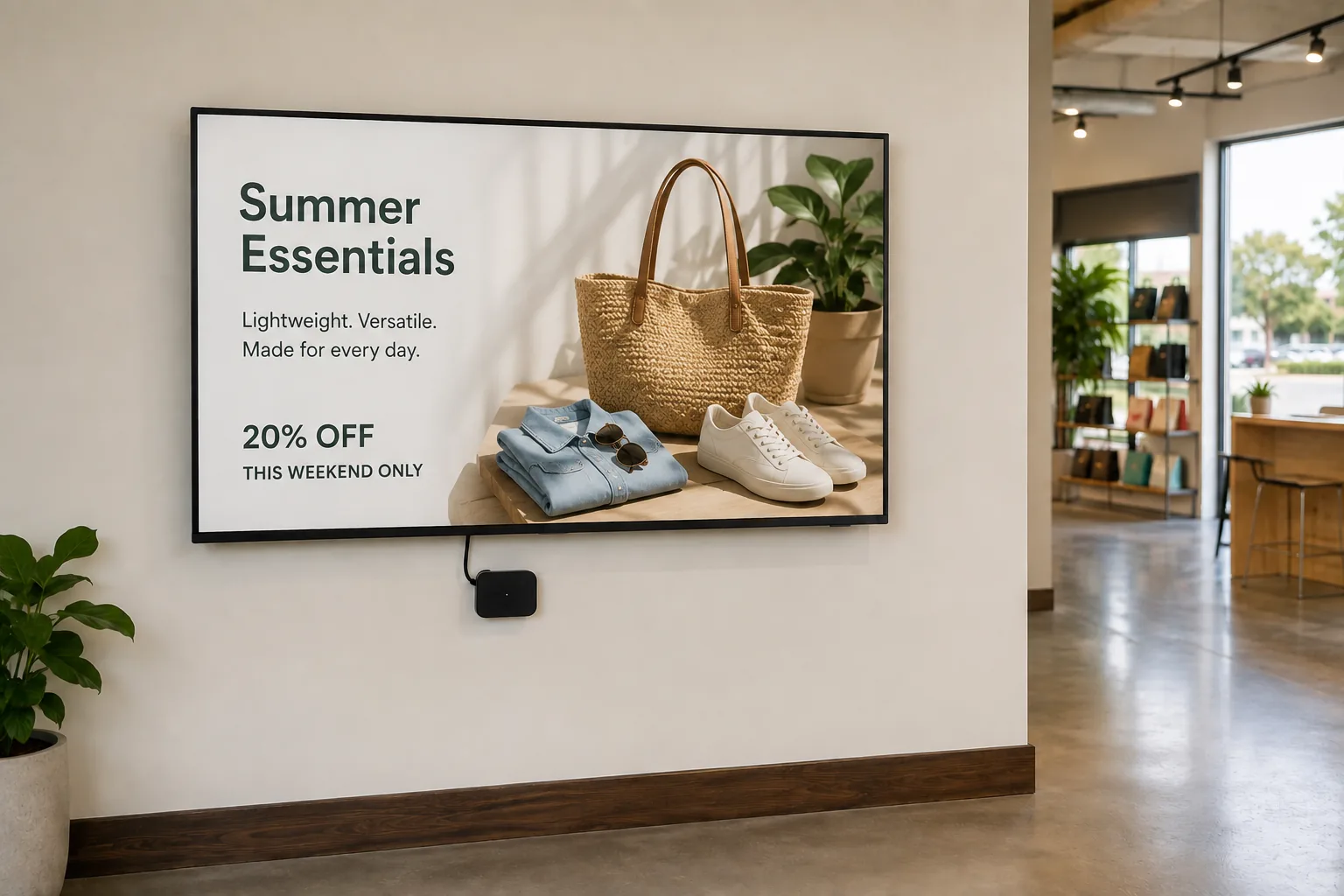
Almost any TV can become a digital sign. That is the honest starting point, and it is why digital signage on TV is the most common way people start with screens. The TV in the lobby, the break room, or behind the counter is already there, and the question is only how to get managed content onto it.
There are two ways to do that, and this page covers both, along with which smart TV platforms work, what to look for in digital signage software for TVs, how to set it up step by step, and straight answers on the devices people ask about most, including Apple TV and Roku.
Can you use a TV for digital signage?
Yes, with one distinction worth knowing. A consumer TV is designed for a few hours of evening viewing, and a commercial display is designed for long hours, higher brightness, and portrait mounting. For a normally lit room during business hours, a consumer TV works well and is the sensible choice. For around-the-clock operation, sunny spaces, or portrait screens, a commercial display earns its price. Vendors also sell digital signage TVs, meaning commercial sets tuned for signage duty, and a digital signage television is the same product by another name.
The signage layer does not care which you choose. Both connect the same way and show the same content, and our displays guide covers the buying decision in detail, including the display-versus-TV question. The rest of this page assumes you have a TV and want it to show signage.
Two ways to turn a TV into digital signage
Every TV signage setup takes one of two routes, and choosing between them is the first decision.
A player behind any TV
A small media player connects to the TV over HDMI and renders the content, and the TV becomes a display. This is the universal route. It works with any TV that has an HDMI port, including older sets, the hospitality TVs our hotel digital signage page covers, and any smart platform Screenly Anywhere does not support. A Screenly Player ($219) or Screenly Player Max Mk3 ($699) is a dedicated, remotely managed device built for exactly this, with automatic security updates, health monitoring, and content cached on the device so playback continues through internet drops. Searches for a TV digital media player or a digital media player for TV describe exactly this device, and our players guide compares the options in depth.
Screenly Anywhere on a smart TV
Some smart TVs and devices can run the signage software directly, with no extra hardware. Screenly Anywhere runs on supported platforms including LG consumer TVs on webOS, Samsung commercial displays on Tizen, Android and Android TV devices, Amazon Fire TV, the Amazon Signage Stick, ChromeOS Flex, and any modern browser. On a supported TV, Screenly Anywhere is the digital signage app for smart TV deployments, and the TV becomes a managed screen in minutes, which is the fastest and cheapest way to prove the value of signage.
The practical rule is simple. Use Screenly Anywhere where the TV supports it, and put a player behind everything else. Both routes end up in the same dashboard.
Which TVs and platforms work
The answer depends on the platform inside the TV, and the list below is honest about which route each one takes.
Samsung smart TVs
Samsung commercial displays running Tizen (SSSP) are a supported Screenly Anywhere platform, with the app installing on the display itself, so the digital signage app for a Samsung smart TV in the commercial line needs no extra hardware. Consumer Samsung sets and hospitality models vary, and a player behind the TV covers any of them.
LG smart TVs
LG consumer TVs are supported through the browser built into webOS, with nothing to install, and support for LG’s commercial display range is on the roadmap. For an LG set that route does not fit, the player route applies as everywhere else.
Android TV and Google TV
Supported by Screenly Anywhere directly through the Google Play Store, covering Android-based commercial displays, smart TVs, tablets, and streaming boxes. Our Android digital signage page covers the device classes and their trade-offs.
Amazon Fire TV and the Signage Stick
Fire TV Sticks and Fire TV devices run Screenly Anywhere from the Amazon Appstore, with the usual consumer-device caveats such as sleep timers. The Amazon Signage Stick is different, meaning purpose-built signage hardware that pairs through Amazon’s console and ships without those timers. Both are covered on the Android page.
Apple TV and Roku
Neither is a Screenly Anywhere platform, and the honest guidance is that consumer streaming boxes are not built for continuous signage duty in any case. The reliable answer for an Apple TV or Roku setup is a Screenly Player behind the same TV, which keeps the screen and replaces only the box driving it.
Everything else
For platforms Screenly Anywhere does not list, the player route applies. Any TV with an HDMI port works with a Screenly Player, which is why the player is the universal answer and the smart TV route is the convenient shortcut where it fits.
Whichever platform you have, there is a working route to managed signage on it. The only question is whether it needs a player.
Digital signage software for TVs
The software is what makes a TV a managed screen rather than a slideshow, and the checklist is the same whether you searched for digital signage software for smart TV setups or for a TV behind a player.
Remote management so any TV, anywhere, updates from a browser with no USB sticks.
Content caching on the device so the TV keeps playing through internet drops, which matters more for TVs on shared Wi-Fi than for wired installs.
Scheduling and playlists so morning, afternoon, and evening content switch themselves.
Apps so weather, calendars, dashboards, and news keep the TV current with no manual work, all from the App Store.
Monitoring so a TV that goes dark in another building is noticed from the dashboard.
Screenly provides all of these through the same platform whether the TV runs Screenly Anywhere or sits behind a player. Vendors marketing smart digital signage software or a smart digital signage system mean this same layer of scheduling, apps, and automation, and our overview of digital signage software covers how to evaluate options in depth.
How to turn a TV into a digital sign
The setup is the same whether it is the first screen or the fiftieth, and it takes minutes rather than an afternoon.
- Start a trial. No credit card is required, so you can explore the platform before any hardware arrives.
- Choose the route. Activate Screenly Anywhere if the TV runs a supported platform, or connect a Screenly Player to the TV’s HDMI port and to the internet over Wi-Fi or ethernet if it does not.
- Pair the screen with your account from the dashboard.
- Add content, from images and videos to live web pages and apps, and organize it into playlists.
- Assign a playlist and schedule and the TV is a managed digital sign.
From there, every update to the TV is a change in the dashboard, and the TV itself never needs touching again.
What TVs end up showing
TV signage tends to settle into a few uses, and each has a deeper page. Reception and welcome content is covered on our lobby screens page, food service displays on our digital menu boards page, announcements on our digital bulletin board page, and live data on our dashboard signage page. The TV is the same in every case. The content is what changes.
Frequently asked questions
Can any TV be used for digital signage?
Any TV with an HDMI port works with a Screenly Player, and supported smart TVs can run Screenly Anywhere with no extra hardware. Consumer TVs suit business-hours use in normal lighting, and commercial displays suit continuous, bright, or portrait placements.
Do I need a player for TV digital signage?
Only if the TV does not run a supported Screenly Anywhere platform. LG webOS consumer TVs, Samsung Tizen commercial displays, Android TV, Fire TV, ChromeOS Flex, and the Amazon Signage Stick run it directly. Everything else takes a player behind the TV.
Does digital signage work on Samsung smart TVs?
Yes, in two ways. Samsung commercial displays on Tizen run Screenly Anywhere directly, and consumer Samsung sets work with a Screenly Player behind the TV.
Can I use Apple TV or Roku for digital signage?
Not with Screenly Anywhere, which does not run on those platforms, and consumer streaming boxes are not built for continuous signage in general. The reliable route is a Screenly Player behind the same TV.
Can I turn a TV into digital signage free?
The honest answer is partly. Screenly Anywhere on a TV you already own removes the hardware cost, and the software has a trial, and our free digital signage page covers what is genuinely free and what it costs you in time instead.
Can you use digital signage as a TV?
The other way round works better. A Screenly-managed screen shows signage content, and a TV can still be switched to its other inputs when needed. Commercial displays with tuners or streaming inputs can do both jobs, and the displays guide covers when that matters.
The TV is already there
Whether it runs the software itself or sits behind a player, any TV becomes a managed screen in the same dashboard. Screenly makes both routes simple.