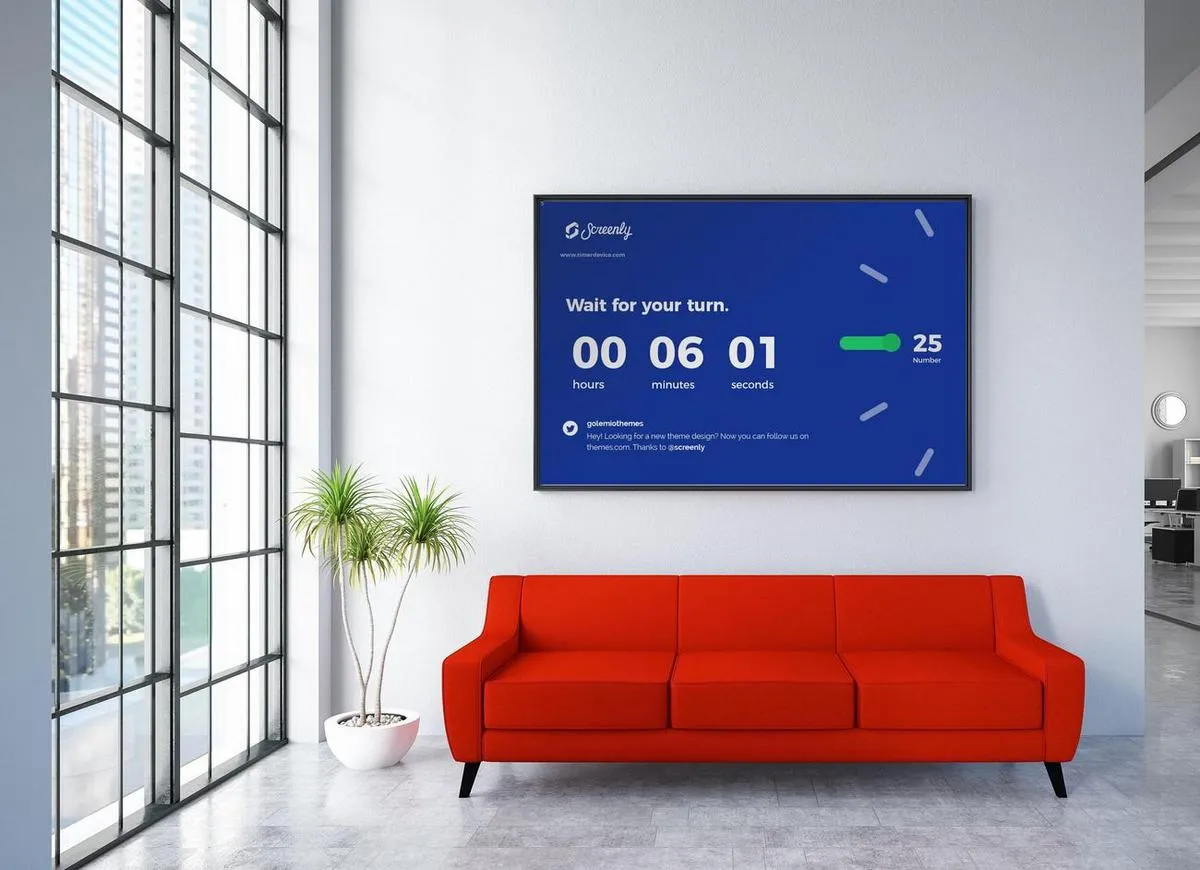
A signage template is a layout that already knows where things go, so you supply the content and the screen looks intentional instead of improvised. At Screenly, templates are not files you download and edit. They are apps. Each one is a ready-made layout with settings, and configuring it takes minutes instead of an afternoon in a design tool.
This page is the template library organized by what the screen is for, built from the apps in the Screenly App Store and the free library at signage-apps.com. It explains how apps work as templates, how to build custom ones with Edge Apps, and how the vendor-agnostic library runs on any screen you already own.
Why apps make better templates than files
A template file solves layout once and then becomes a maintenance job. Every price change, every new event, and every updated name means opening the file, editing it, exporting it, and uploading it again, and the layout quietly drifts each time someone touches it.
An app template solves layout permanently. The layout is fixed inside the app, the content lives in settings you fill in from the dashboard, and anything that changes on its own, such as weather, calendar events, or a data feed, updates itself. The person updating the screen changes a text field, not a design. For the design principles behind why these layouts work, our guide to digital signage content design goes deeper than this page needs to.
The signage template library
Every template below is a working app you can install today, grouped by what the screen is for. Each entry links to the app itself and, where a deeper use-case page exists, to that page.
Welcome and reception templates
Welcome. A full-screen welcome layout with a customizable header and text, which is the classic reception screen for offices, hotels, and visiting groups.
Simple Message. A text-only message in large type, for the single most important thing a visitor should know right now.
Calendar, Google Calendar, and Outlook Calendar. Today’s events straight from the calendar you already keep, so the reception screen shows who is expected and which room they are in.
Clock and Weather. The two apps that make any welcome screen feel current all day.
The pattern for reception screens is a playlist that rotates a welcome layout with the day’s calendar and a weather frame, which reads as considered rather than static. Our hotel digital signage page shows the full front-of-house version.
Announcement and communication templates
Slack Messages. The latest message from a chosen Slack channel, full screen, which turns an announcements channel into an announcements board with no extra work.
Simple Message. The same large-type layout, used here for the notice everyone must see today.
RSS Reader. Any RSS feed on screen, including your own intranet or news feed.
BambooHR and CharlieHR. Employee birthdays, work anniversaries, and leave schedules pulled from the HR system, which is recognition content that maintains itself.
Countdown Timer. A countdown to a launch, a deadline, or an event.
Birthday and Team Milestone. Two celebration layouts from the free library, configured with a name and a date.
These entries replace the corkboard, and our digital bulletin board page covers how to run that screen day to day. The free library also has a dedicated digital notice board collection.
Food service templates
Menu Board. A dynamic menu layout with up to 25 items, priced and grouped, edited from the dashboard rather than a design tool.
Menu Board (free library). A vendor-agnostic version of the same idea, configured on signage-apps.com and runnable on any screen.
Opening Hours. Your hours and whether you are open right now, which is the most-asked question a storefront screen can answer.
For dayparting, multi-screen menu walls, and the TV menu template walkthrough, see our digital menu boards page.
Listing and reference templates
Simple Table. CSV data rendered as a clean formatted table, which makes it the template for building directories, room lists, schedules, and any list that lives in a spreadsheet. Update the CSV and the screen updates.
QR Code Generator. A QR code on screen, with optional UTM tracking, for sending people from the screen to a page, a form, or a menu.
Iframe. Embeds any web content, which covers the long tail of internal tools and pages that never had an app of their own.
Directory-style screens built on Simple Table are covered in depth on our digital directories page.
Event and timing templates
Countdown Timer and Simple Timer. A countdown to a moment, or a live timer for breaks, sessions, and tasks.
Calendar apps. Today’s schedule with times and rooms, drawn from Google Calendar, Outlook Calendar, or a generic calendar feed.
Timer and World Clock (free library). A configurable timer and a multi-zone clock for distributed teams.
Event screens work best when the current or next item is obvious at a glance, and these layouts are built that way.
Live data templates
Grafana Dashboard. Live Grafana dashboards on the wall.
Power BI. Password-protected Power BI dashboards and reports, displayed without exposing credentials.
Salesforce Dashboard. Salesforce dashboards and reports on screen.
Airtable Dashboard. Airtable data as a screen.
TradingView Widgets. Live charts and market heatmaps.
Demo Dashboard. Simulated dashboards with realistic auto-refreshing data, for staging a screen before the real integrations are wired up.
The data side of these screens, including authenticated sources and the hardware that renders dense dashboards well, is covered on our dashboard signage page.
News and context templates
News apps. Rotating headlines from BBC News, The New York Times, NPR, The Wall Street Journal, Fox News, and Al Jazeera, each as its own app.
News and RSS feeds (free library). More than thirty auto-rotating feeds covering world news, technology, sports, and visual sources such as NASA’s Image of the Day.
Weather, Air Quality, and Moon Phase. Local conditions that give a screen a sense of place.
TFL Bus Stop. Live Transport for London bus times for a chosen stop, which is the model for any location-specific transit screen.
Strava Club Leaderboard. Real-time rankings for a Strava club, a favorite for gyms and active workplaces.
Context templates are what keep a screen from looking like a poster. Rotate one or two into every playlist.
Screensaver and ambient templates
3D Text Screensaver and Flying Toasters. Retro screensaver layouts for screens that should look alive between messages.
Quotes, Word of the Day, On This Day, and Capital Quiz (free library). Light daily content for break rooms, waiting areas, and classrooms.
Ambient templates fill the gaps in a playlist so that a screen never sits on one static slide for an hour.
Every group above follows the same rules. One job per screen, the most important element in the largest type, and content that updates itself wherever it can. The complete, current catalog lives in the Screenly App Store, and if the template you need is missing, the App Store has a request form and the most requested apps get built.
How an app works as a template
Installing an app from the App Store creates an instance, meaning the app plus your configuration. That is the whole template mechanism. The layout is the app, the content is the settings, and one app can have many instances, which is how the same welcome layout runs with different text in three different lobbies.
Settings are typed, so an app that needs a logo gives you an image upload control rather than asking for a pasted URL, and fields carry help text so the settings form explains itself. Many apps expose branding settings such as header text, colors, and logos, and each app’s page lists what it lets you change. Once installed, an app behaves like any other content. It goes in a playlist, takes a duration, follows the schedule, and inherits your permissions.
The result is a template that non-designers can use safely. Nobody can break the layout by editing the content, because the content and the layout are separate things.
Building your own templates with Edge Apps
When no ready-made layout fits, Edge Apps let a technical team build one. An Edge App is a web app plus a manifest that tells Screenly how to configure and run it, and once installed it behaves exactly like an App Store app.
The manifest declares the settings the app exposes in the dashboard, with field types including text, number, select, boolean, textarea, URL, datetime, and image upload. API keys and other credentials go in encrypted secrets that are delivered to the device and never appear in page source, and an app whose secrets cannot be decrypted is skipped rather than breaking the playlist. Deploys are versioned across the fleet, so a template can be updated everywhere at once and rolled back if needed.
The workflow is driven by the Screenly CLI. You validate the app, run it locally with generated mock data, and deploy it when it is ready. On ScreenlyOS the app runs on the device, and on some Screenly Anywhere platforms it is rendered server-side and sent to the screen as images, which matters for apps that animate by the second. The full manifest schema, JavaScript API, and examples are at developer.screenly.io and in the open Playground repository.
For a team with a house layout, Edge Apps turn it into a template that anyone in the organization can install and configure without touching the design again.
Templates that run on any screen
signage-apps.com is a library of 52 free digital signage apps that Screenly maintains, and every one of them is a plain URL. Pick an app, copy the link, and run it on any player or smart TV that can show a web page, including Anthias, Screenly’s free and open source player, the managed Screenly platform, and other vendors’ players and platforms entirely.
The library covers clocks, weather, air quality, opening hours, a menu board, birthday and milestone celebrations, a timer, daily quotes and words, and more than thirty news and sports feeds. It also includes Screenly Cast for WordPress, a plugin that turns an existing WordPress site into signage content, and a collection of digital signage examples for seeing layouts in context.
The point of the vendor-agnostic library is that a good template should not depend on which player you bought. If your screen can open a URL, these templates work on it.
Orientation and fit
Apps render to the screen they are assigned to, so the main decision is whether the screen is landscape or portrait, and the app pages note which layouts suit which orientation. Landscape suits most welcome, data, and news screens, and portrait suits listings, menus on narrow walls, and totems. For which physical screen suits which space, including brightness and portrait support, our displays guide covers the hardware side.
Getting started
A first template can be live in minutes. The path looks like this.
- Start a trial and connect a screen with a Screenly Player or Screenly Anywhere.
- Pick a template from the groups above that matches the screen’s job.
- Install and configure the app, filling in its settings from the dashboard.
- Build a playlist that rotates the template with one or two context apps such as weather or the calendar.
- Assign it to the screen and let scheduling handle the rest.
From there, updating the screen means editing a setting, and the layout takes care of itself.
Frequently asked questions
What is a signage template?
A signage template is a ready-made layout for a screen with defined places for headlines, details, images, and branding. In Screenly, templates are apps, meaning the layout is fixed inside the app and the content lives in settings you fill in.
Where do I find digital signage templates?
The Screenly App Store holds the configurable app templates, and signage-apps.com holds 52 free vendor-agnostic ones that run on any screen. This page groups both by what the screen is for.
Can I customize a template with my branding?
Many apps expose settings for header text, colors, and logo uploads, and each app’s page lists exactly what it lets you change. Teams that need a fully house-branded layout build it as an Edge App so everyone can install it.
Do I have to pay for signage templates?
No. The signage-apps.com library is free and runs on any URL-capable screen, and our free digital signage page covers what else costs nothing.
Can I build my own signage template?
Yes. Edge Apps let technical teams package a web layout with a manifest, typed settings, and encrypted secrets, and deploy it across a fleet as versions. Once built, anyone can install and configure it like any other app.
Can one template run on many screens with different content?
Yes. Installing an app creates an instance with its own settings, and one app can have as many instances as you need, each on its own screen with its own content.
Start from a layout that already works
Pick a template, fill in the settings, and put it on any screen. Screenly keeps the layout doing its job every time the content changes.
The full template catalog
Every ready-made layout in the Screenly App Store, current as of today and self-updating as new ones ship.
3D Text Screensaver
Use Screenly to display animated 3D text with retro screensaver effects, customizable …

Airtable Dashboard
Display Airtable data on your Screenly digital signage screens.

Al Jazeera News
Use Screenly to display Al Jazeera on your digital signs.
Asset Metadata
Show real-time screen metadata directly on your digital signage displays.

BambooHR
Display employee birthdays, work anniversaries, and leave schedules from BambooHR
BBC News
Use Screenly to display BBC News on your digital signs.
Calendar
Display events from your calendar on a digital sign
CharlieHR Dashboard
Display employees birthdays, work anniversaries, and current leave status from CharlieHR.
Clock
Display the time
Countdown Timer
Show a countdown for upcoming events, deadlines, or launches
Demo Dashboard
A collection of simulated digital signage dashboards.
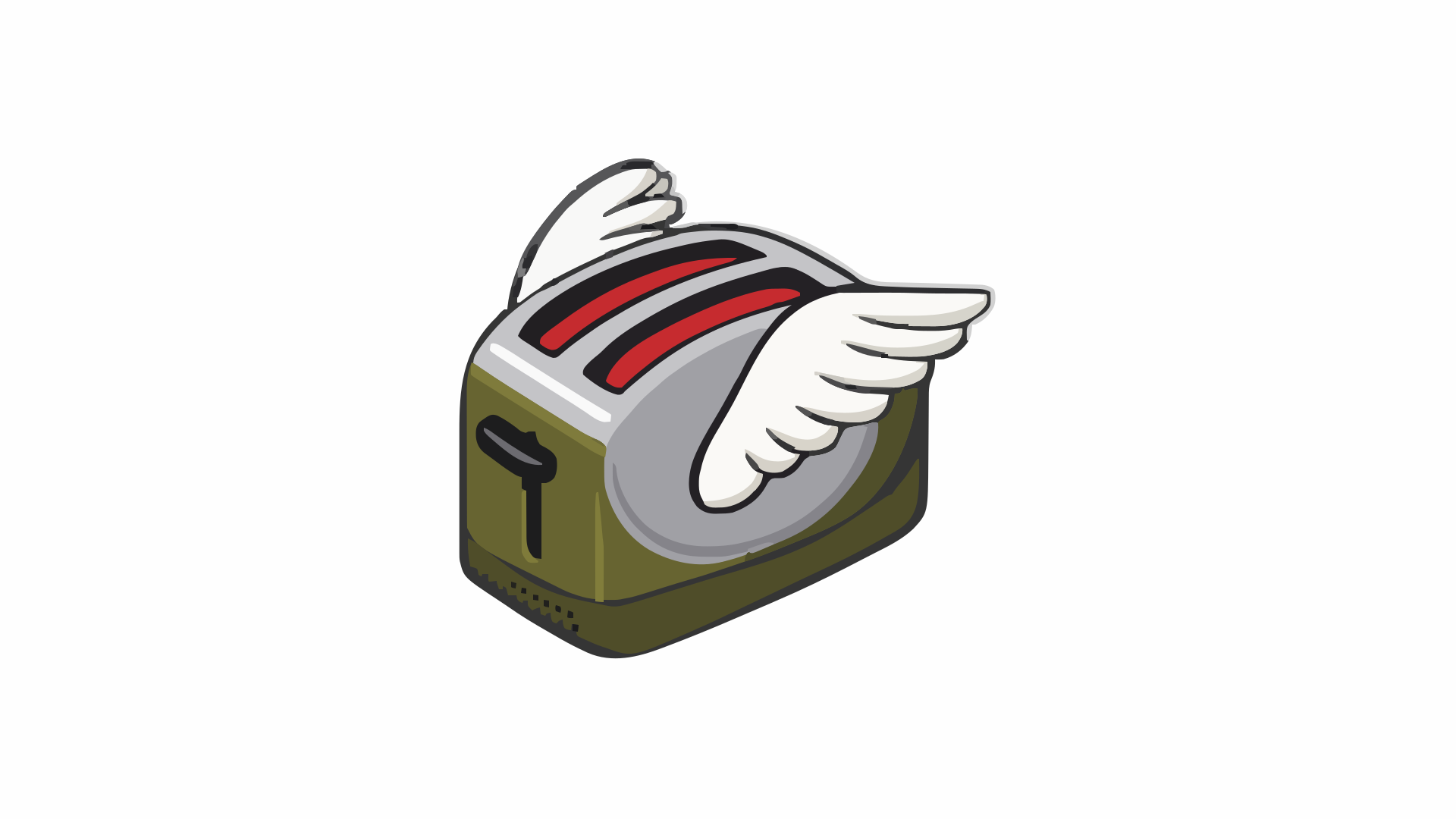
Flying Toasters
Display animated flying toasters on your screen with Screenly.

Fox News
Use Screenly to display Fox News on your digital signs.
Google Calendar
Display events from your Google Calendar on a digital sign

Grafana Dashboard
Use Screenly to display live Grafana dashboards on your digital signage screens.
Iframe
Use the Screenly Iframe App to display iframe content on a digital sign
Menu Board
Use Screenly to display dynamic menu boards with up to 25 items on your digital signs.
NY Times News
Use Screenly to display New York Times News on your digital signs.
NPR News
Use Screenly to display NPR News on your digital signs.
Outlook Calendar
Display events from your Outlook Calendar on a digital sign
Power BI
Display password-protected Power BI dashboards.
QR Code Generator
Display QR codes on your digital signage, with optional UTM tracking to enhance analytics.

RSS Reader
Show any RSS feed content

Salesforce Dashboard App
Display Salesforce dashboards and reports on your Screenly screens
Simple Message
Display key information instantly with a simple text-only message.

Weather
Display live weather and forecasts.
Simple Table
Display CSV data as beautifully formatted tables on digital signs
Simple Timer
Show a live countdown timer for events, breaks, or tasks

Slack Messages
Display the latest Slack channel message, full screen, on your screens.
Strava Club Leaderboard
Display real-time rankings and stats for your Strava club on Screenly Players.

TradingView Widgets
Display live TradingView charts and market heatmaps on your screens.
TFL Bus Stop
Display Transport for London (TFL) bus schedules and customize for your location

WSJ News
Use Screenly to display Wall Street Journal News on your digital signs.
Welcome
Use Screenly to display a welcome message with a customizable header and text.