Beginner

Display a clock on your digital signs

Tutorial

Display a clock on your digital signs
The Screenly Clock App web page showing the URL for the Clock App.

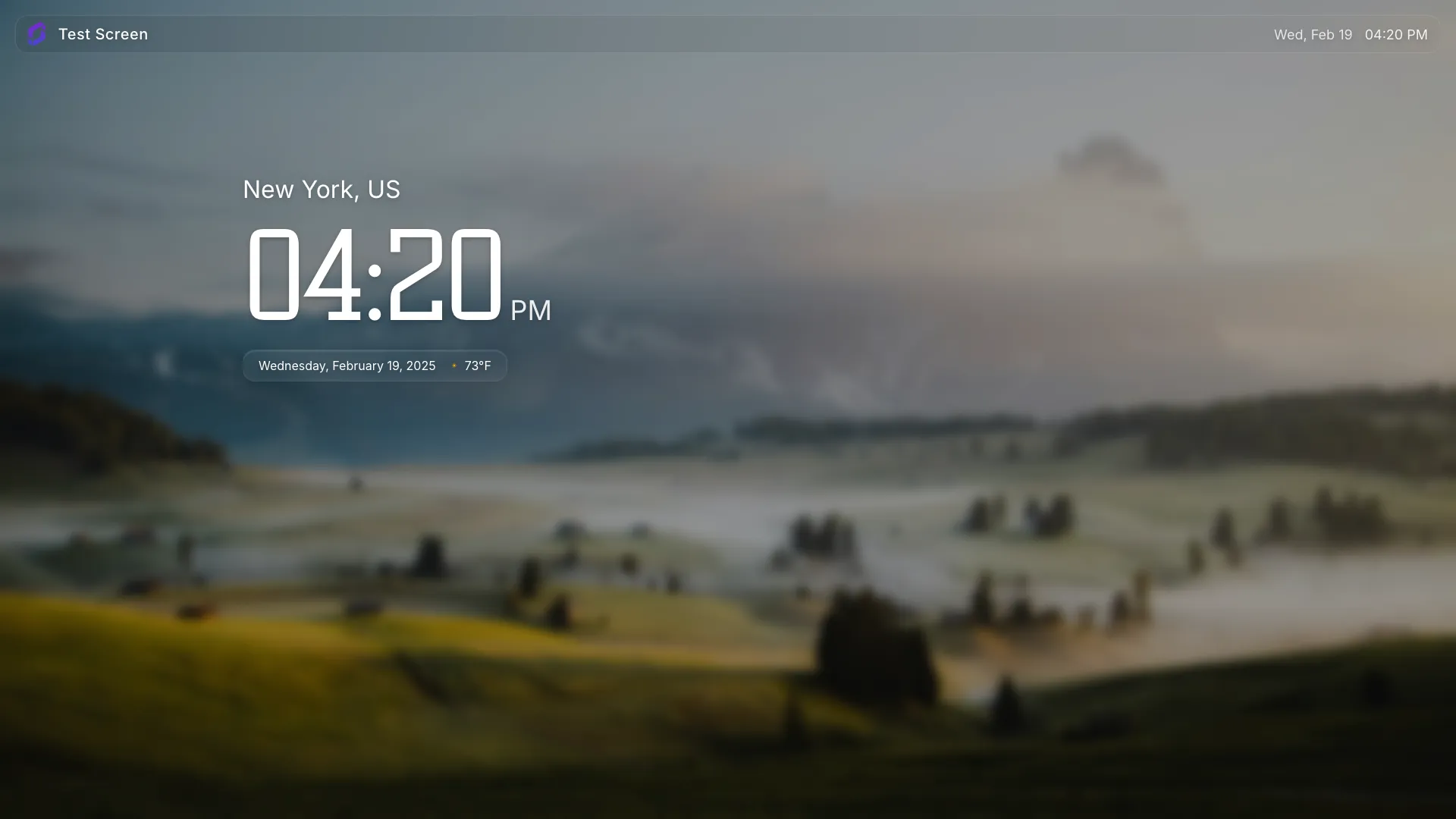
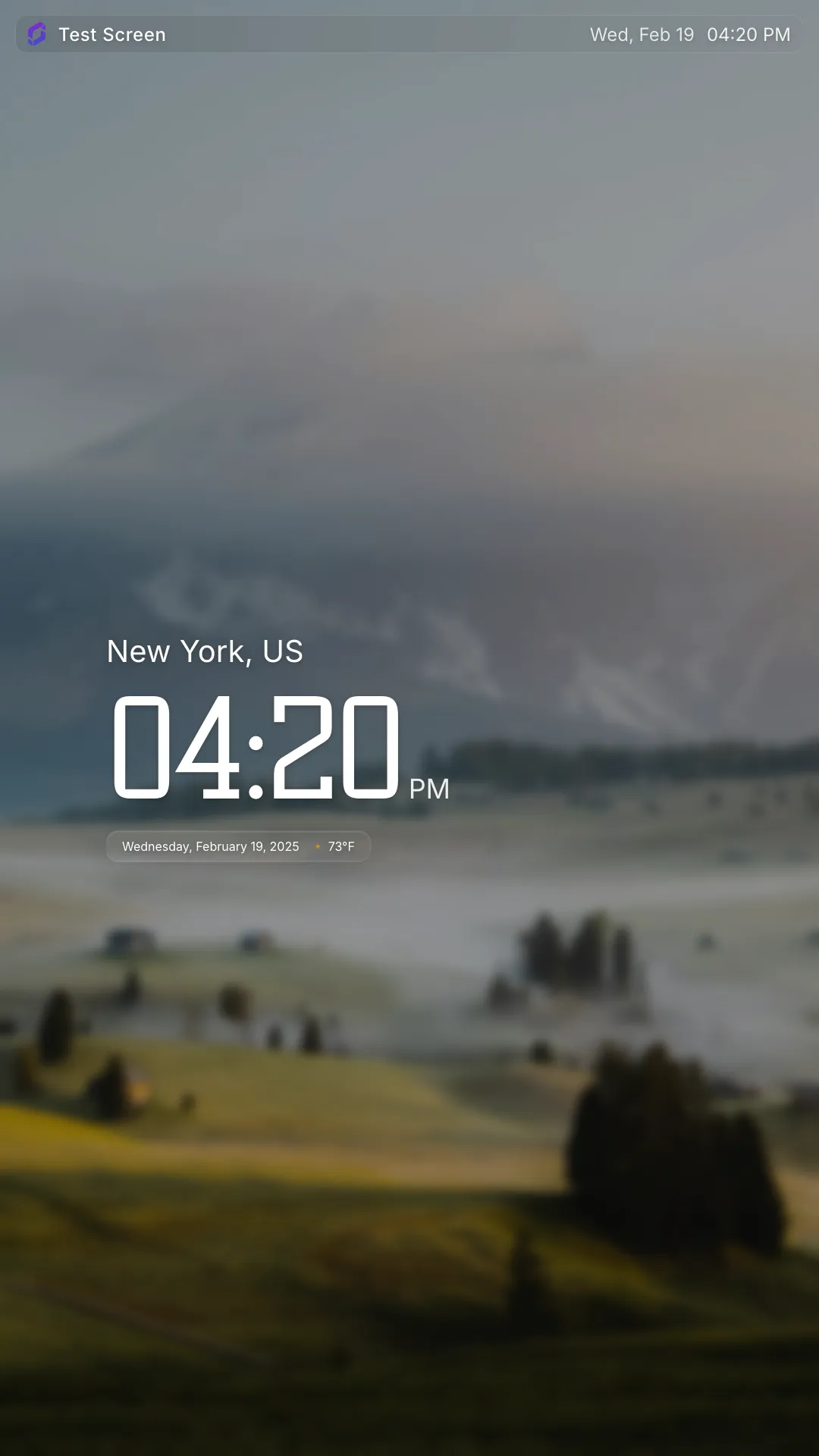
Screenly has a ready-to-use clock application in the Screenly App Store. The Clock App allows users to display the time on their screens with ease.

The Clock App looks great out-of-the-box, and users can start displaying the time on their screens in seconds. The Clock App displays the local time based on the auto-detected time zone for each screen.

The Clock app works with any screen and digital signage players. The Screenly Player and Screenly Player Max are our digital signage player options, and both can run Apps to any screen that accepts HDMI input.

The Clock App is open source and free for all users. To use the Clock App with Screenly, the first step is to get a 14-day free trial Screenly account. Once you have a Screenly account, follow the article below for a step-by-step guide on how to use the Clock App with your TV screens and monitors.

Step-by-step process to use the Screenly Clock App with your Screenly digital signs

Log in to your Screenly account here. If you do not have a Screenly account, register for a 14-day free trial.

After you log in to your Screenly account, click the “New” button on the top right. Next, click on “App” from the dropdown menu.

The + New Clock App button

In the popup App list, Choose the Clock App.

Choose Clock App from the app list

Or click the button below to use the Screenly Clock App now.

Configure the App

You can customize the app settings based on your specific needs.

Configure the Clock App

1. Enter App Name

When creating the Clock App, start by providing a clear App Name to identify it within your workspace.

2. Open Advanced Settings

Click Advanced to access additional configuration options.

Coordinates (Latitude & Longitude) [Optional]

By default, the app automatically uses the device’s coordinates to display local time.

If needed, you can override this by entering custom coordinates. For example:

123.456, 78.910

(Format: latitude, longitude)

This is helpful for screens installed indoors or assigned to a location different from the device.

Locale (Language for Time Display) [Optional]

The app uses the device’s locale when supported. If the device’s locale isn’t supported, the fallback is:

en

(English)

You can manually set the locale by entering a supported language code. Example — For German, use:

de

You can find the full list of supported locales here.

After configuring the settings, select “Install” to deploy the app to your workspace.

Assign to a Playlist

Once the app is installed, that can be scheduled like any other content in Screenly.

You can then assign the Clock App content item to a playlist in your Screenly account. To do so, click the “Playlist” icon on the left-hand menu. Then, click the three-dot button on the right side of an existing playlist and click the “Edit” button. Alternatively, you can create a new playlist by clicking the “+ New Playlist” button on the top right of the screen.

The Edit option tab in the playlist settings menu

To add the Clock App to a playlist, click the “+” button in the “Content” section of the “Edit Playlist” page. Then open the “Apps” tab, select the Clock App, and click “Done”.

Add Clock App to the playlist

Once you assign the playlist containing the Clock App to a screen, our digital clock sign will display on your TV or monitor in just seconds.

The Screenly Clock App is open source. Users who want to make advanced configurations can do so by cloning the source code from the Screenly Clock App GitHub page.

If you have trouble getting the Clock App to display on your screen, we are here to help. Contact Screenly Support at any time - we always enjoy talking with our users.

Recent Tutorials

Display your best content with Screenly digital signs.

Get started today quickly and easily with Screenly's secure, enterprise-grade digital signage.

footer screen image
manage cookies