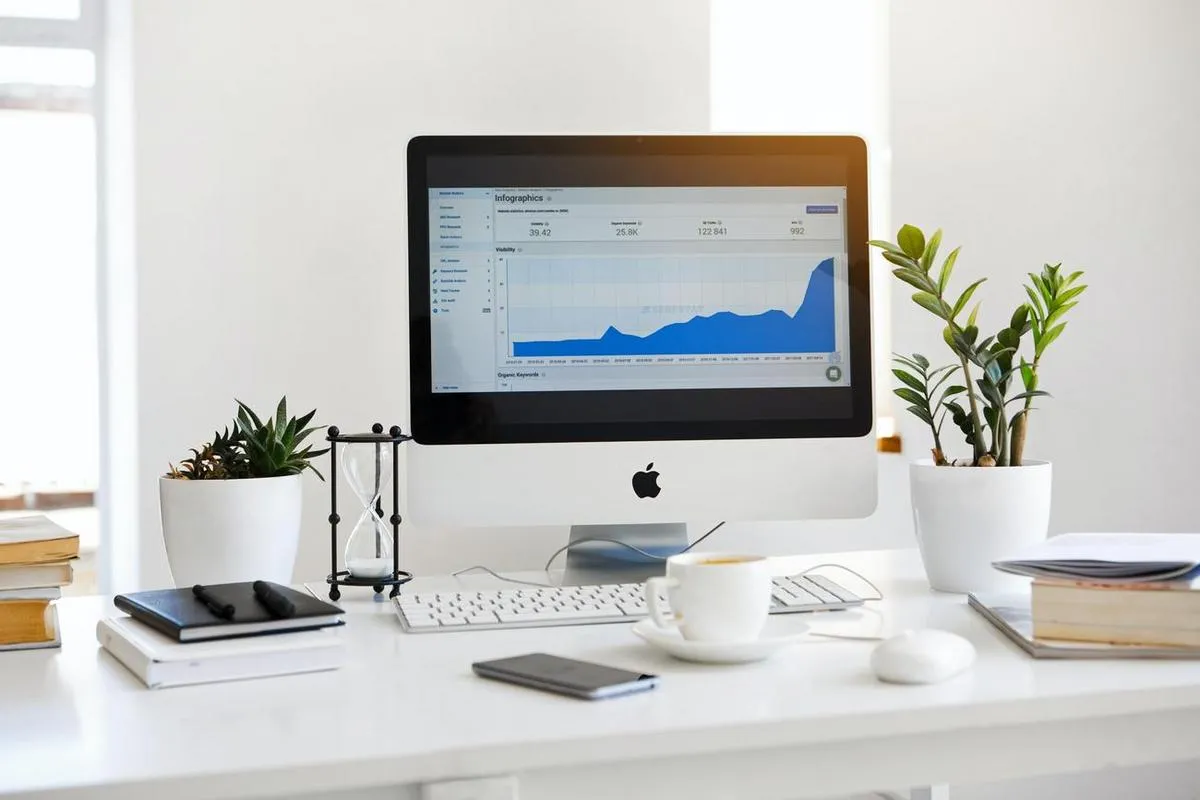
To set up a digital sign, users will need a screen, a digital signage player, and digital signage software. The screen can be any TV or monitor that accepts HDMI input. Ideally, the screen has a 16:9 aspect ratio and can display content in at least 1080p Full HD resolution.
A digital signage player is a small, physical device that connects to the digital signage screen via an HDMI cord. The digital signage player renders content to the digital sign screen, similar to how a DVD player renders a movie to a home TV.
Users will also need digital signage software. Digital signage software allows users to edit the content that displays on their digital signs from anywhere with an internet connection. Users can add, remove, or reorder, images, videos, and public URLs from the comfort of their laptops.
You can learn more about setting up your first digital sign here.
Adding your public Mixpanel dashboard URL to your digital sign
Once you have your digital sign up and running, the next step is to add your public Mixpanel dashboard URL as content on your digital signage software account. Of course, the steps vary depending on what digital signage software you are using. To learn how to add your public Mixpanel dashboard URL to your online Screenly account, please follow the steps below:
- Log in to your online Screenly account.
- Click the Content tab on the lefthand side of the Screenly interface.
- Click the + New Content button on the top right of your screen.
- In the popup modal, click the URL tab.
- Add the public Mixpanel dashboard URL.
- Click Finish.
Next, you will need to create a playlist and add your Mixpanel URL content to that playlist. To do so, following the steps below:
- Click the Playlists tab on the lefthand side of your screen.
- Click the + New Playlist button on the top right of your screen.
- Name your playlist.
- Select what screens you want your playlist to play on.
- Select the times and dates when you want your playlist to play.
- Click the + button on the right side of the content section.
- In the new popup modal, select the content item for your public Mixpanel dashboard URL.
- Click Done on the bottom right of the popup modal.
- Click Save on the bottom right of the screen to finish.
That’s it! Your public Mixpanel dashboard will start displaying on your digital signs in minutes. If you having any trouble adding content to your Screenly account, watch our video guide here.
Getting started with Screenly
Screenly offers an integrated hardware and software solution for digital signs that allows companies to launch their first digital signs with ease. To get started with Screenly, sign up for a 14-day free trial of our digital signage software. You can also learn more about our digital signage player, the Screenly Player, here.
If you have any trouble displaying your public Mixpanel dashboards with Screenly, do not hesitate to reach out to Screenly Support.