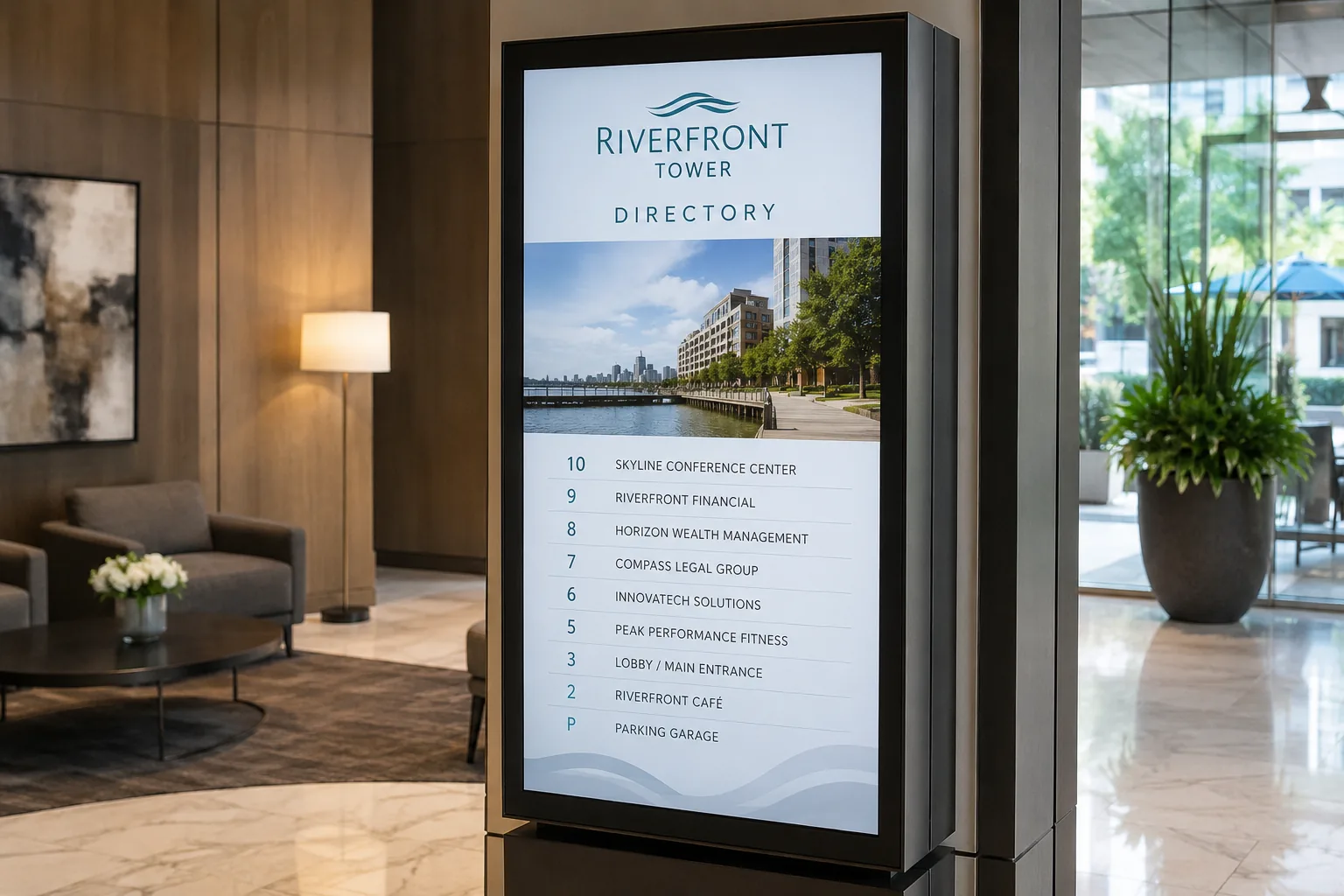
A digital directory replaces the static tenant board in your lobby with a screen you update from a web browser. When a tenant moves in, moves out, or changes suites, the directory is correct within minutes, with no letter strips to order, no glass panel to unlock, and no ladder.
This guide covers how digital building directories work, what they cost, how to keep listings updated automatically, and how to design a directory people can actually read, whether you manage a single office building, a medical campus, or a portfolio of properties.
What is a digital directory?
A digital directory is a screen, typically mounted in a lobby or near elevators, that displays a building’s tenant listings, suite numbers, and floor information. Behind the screen sits a media player and cloud software that let building staff update the listings remotely.
You will also see them called digital building directories, electronic directory signs, digital directory boards, or lobby directories. The hardware and software are the same across all of these; only the setting changes.
The directory can show more than names and suite numbers. Buildings commonly rotate the tenant listing with visitor information, transit times, weather, building announcements, and amenity promotions, which turns a static fixture into a communication channel.
Why replace a static building directory?
Tenant changes stop being a project. With a backlit strip directory, every tenant change means ordering engraved strips, waiting for delivery, and unlocking the case to swap them. With a digital directory, the update is typed into a browser and published. For buildings with regular turnover, this alone justifies the switch.
One update reaches every board. Buildings with directories at multiple entrances, or property managers running multiple buildings, update all screens from one dashboard. Listings never drift out of sync between the north and south lobby. Hotels run the same pattern at reception, and our hotel digital signage page covers screens across a whole property.
The directory earns its wall space. Static boards do one job. A digital directory can also welcome visitors by name for scheduled events, show building notices, and promote amenities, all scheduled around the core listing.
It reflects on the property. The lobby directory is one of the first things a prospective tenant sees. A crisp, current digital directory signals a well-run building in a way a strip board with two blank slots does not.
No recurring strip and engraving costs. The hardware is a one-time purchase and updates are free forever after.
Types of digital directories
Lobby tenant directories. The classic use: an alphabetical or floor-ordered listing of tenants with suite numbers, usually on a portrait screen near the entrance or elevator bank.
Office and floor directories. Multi-tenant floors and coworking spaces use smaller screens at floor level to list companies and meeting rooms on that floor.
Campus and medical building directories. Hospitals, medical office buildings, and campuses list departments and practices rather than tenants, and often pair the directory with maps and visitor guidance. For guidance content specifically, see our guide to wayfinding with digital signage.
Display directories vs. touch kiosks. Most building directories do not need to be interactive. A well-organized display directory, alphabetized or grouped by floor, lets visitors find a name in seconds, works for every visitor at once, and never has a smudged or broken touchscreen. Interactive kiosks make sense for very large campuses with search needs; for the common case, display-based directories are simpler, cheaper, and more reliable.
What you need to run a digital directory
A screen. Portrait orientation suits directory listings naturally, and Screenly supports portrait and landscape. A standard consumer TV works for most lobbies; consider a commercial display for bright entrances or 24/7 operation. Our guide to choosing a display covers the tradeoffs in depth.
A media player. The Screenly Player ($219) or Screenly Player Max Mk3 ($699) are dedicated, remotely managed devices designed to run continuously, receive automatic security updates, and report their health to your dashboard. Alternatively, Screenly Anywhere runs on smart TVs (including Samsung Tizen), Android and Android TV, ChromeOS, and the Amazon Signage Stick, so an existing lobby TV can become the directory with no new hardware.
Software. The cloud dashboard where you manage the directory content, schedule any rotating announcements, and monitor that every screen is up. Because directories run in semi-public spaces on the building network, security matters: Screenly is ISO 27001 and SOC 2 Type II certified, built on a zero-trust architecture with no default credentials and no open inbound ports.
Keeping the directory updated automatically
For most buildings, updating the directory means editing a Google Slides deck or an image and republishing, which takes minutes and requires no technical skill.
Larger operations can remove even that step. With the Screenly API and Edge Apps, the directory can render directly from a data source your team already maintains, such as a spreadsheet or property management system. Update the tenant list in the source, and every directory screen updates itself. This is the difference between a directory you maintain and a directory that maintains itself.
Directory design and templates
A directory’s job is fast lookup by a visitor who has never seen it before:
- Alphabetical or by floor, pick one and commit. Mixed ordering is the most common directory design failure.
- High contrast, generous type. Names should be readable from a comfortable standing distance without squinting. When in doubt, larger.
- Suite numbers visually paired with names, so the eye never has to travel.
- Pagination over crowding. If the tenant list exceeds one readable screen, rotate pages on a timed cycle rather than shrinking the type.
- Keep motion away from the listing. Rotate announcements in a separate zone or on a schedule; the directory itself should be stable.
You do not need a designer to start. A building directory template in Google Slides works well, and Screenly’s Google Slides tutorial shows how to design once and publish updates by editing the deck. Screenly Apps can add live elements such as clocks, weather, and transit times alongside the listing. More ready-made layouts for lobby screens are grouped on our signage templates page.
How much does a digital directory cost?
Screen: roughly $200 to $500 for a quality consumer TV, more for commercial-grade displays. Add mounting hardware and installation.
Player: $219 for the Screenly Player or $699 for the Screenly Player Max Mk3, one per screen, as a one-time cost. Zero if you run Screenly Anywhere on a smart TV you already own.
Software: priced per screen per month. See Screenly’s pricing for current plans.
A single-lobby directory typically lands between $450 and $950 in one-time hardware plus the subscription, and our digital signage cost guide breaks down each component. Compare that with engraved strip directories, where every tenant change carries a cost forever, and premium architectural letter boards that run well into four figures before they can display anything but names.
Setting up a digital directory with Screenly
- Create your account. Start with a free trial.
- Connect a player to the lobby screen via HDMI, or activate Screenly Anywhere on the existing smart TV.
- Build the directory content. A Google Slides deck or image works on day one; move to an automated data-driven directory later if the portfolio justifies it.
- Schedule the rotation if you are pairing the listing with announcements or visitor content.
- Monitor from the dashboard. Every directory in every building, visible from one place.
Frequently asked questions
Do digital directories need to be touchscreens?
Usually not. A clearly organized display directory lets visitors find a name in seconds and serves everyone in the lobby at once. Touch kiosks add cost and maintenance and mainly pay off on large campuses with genuine search needs. Screenly’s platform is built around display signage; interactive experiences can be built with Edge Apps for teams that need them.
How do I update tenant names?
Edit the source content (for example, a Google Slides deck) and republish; screens update within minutes. Buildings that want zero manual steps can drive the directory from a spreadsheet or property system via the Screenly API.
Can one dashboard manage directories in multiple buildings?
Yes. Screenly manages any number of screens across any number of locations from one account, with per-user permissions so each building’s staff can be limited to their own screens.
What happens if the internet goes down?
The directory keeps displaying. Content is cached on the player, so playback continues through outages, and updates sync when the connection returns.
Should the directory be portrait or landscape?
Portrait suits name listings naturally and matches the traditional directory format, but both work. Screenly supports both orientations.
Can the directory show other content besides listings?
Yes. Buildings commonly rotate the tenant listing with announcements, weather, transit times, and amenity content, scheduled so the listing remains the anchor.
Put your building directory on a screen
From a single lobby board to a multi-building portfolio, Screenly keeps every directory current, secure, and running around the clock.