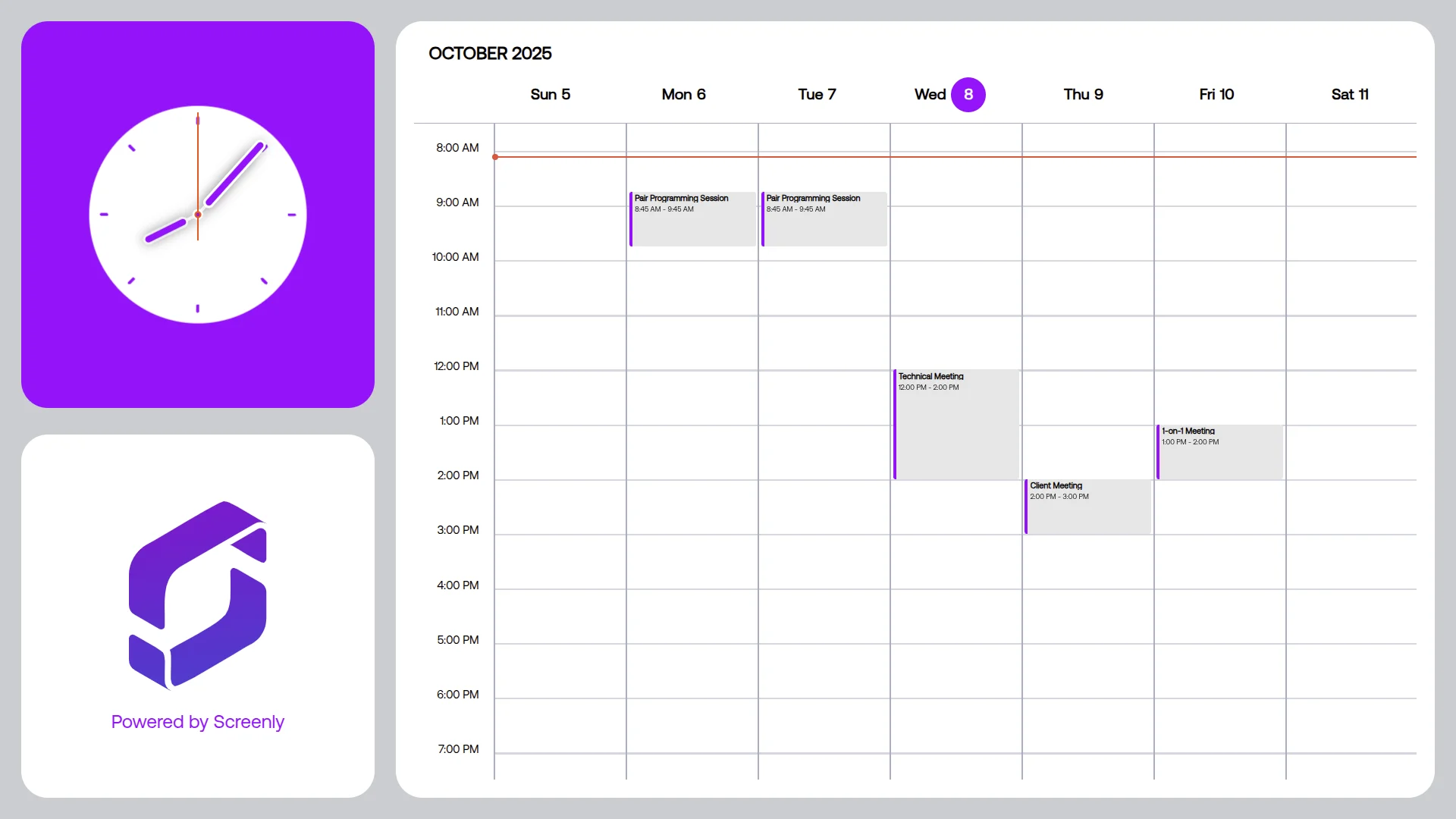
A digital schedule board shows the day’s schedule on a screen and keeps it true. The shift roster, the class timetable, the event program, the departure times, and the week’s calendar all live somewhere already, in a calendar or a spreadsheet, and a schedule board puts that source on the wall so it updates when the source does.
This page covers digital schedule boards and calendar boards wherever people need to know what happens when, including what goes on them, where the schedule comes from, the settings they work best in, and how to put one on any screen in minutes.
Why schedules belong on a screen
A printed schedule is wrong the moment anything changes, and something always changes. The pattern that follows is the same everywhere, with corrections taped over the original, people asking the front desk, and the schedule in the system disagreeing with the one on the wall.
A digital calendar board ends the disagreement by making the screen a view of the source. The schedule changes in the calendar, or a fresh copy of the spreadsheet goes into the table app, and every screen showing it updates within minutes. Nobody reprints anything, nobody tapes anything, and the screen and the system are the same thing. That is the whole difference between an electronic calendar board and a printed one.
Where the schedule comes from
A schedule board is only as good as its source, and there are four reliable ways to feed one. Here they are from simplest to most flexible.
From the calendar you already keep. The Google Calendar and Outlook Calendar apps show a calendar’s events live, with today’s items, times, and locations, and the Calendar app covers any other calendar that can be shared as an iCal link. Anyone who can edit the calendar can change the board.
From a spreadsheet. The Simple Table app renders CSV data as a clean table, which makes it the schedule board for anything that lives in a spreadsheet, such as shift rosters, class timetables, production runs, and court or pitch bookings. Paste the CSV into the app once, and when the roster changes, paste the new version and every screen showing it updates.
From a web page. Any schedule published as a web page, including internal tools and public timetables, displays as live content and refreshes itself. A spreadsheet that changes several times a day can be published to the web and shown this way, so the board follows every edit without anyone pasting anything.
From your own systems. The Screenly API and Edge Apps let a technical team drive a schedule board directly from a rostering, booking, or production system.
Whichever source you use, the board stays correct because it is the source, shown on a screen.
Where digital schedule boards work
The schedule board shows up wherever a group of people share a timetable, and the settings are more varied than most people expect.
Shift boards and staff rosters. A roster board shows who is on, who is next, and where, in staff rooms, back-of-house corridors, and production areas, from a spreadsheet or a calendar.
Timetables for campuses and learning spaces. Class and room timetables, exam schedules, and daily programs belong in corridors and common areas, as our education page covers more broadly.
Event and venue programs. The day’s sessions, times, and rooms run on screens at conferences, festivals, and venues, with the current session highlighted and the next one visible. Our hotel digital signage page covers the daily event board in that setting, and our portable digital signage page covers screens that travel to events.
Departure and arrival boards. Transit times, shuttle schedules, and pickup windows change constantly, and the TFL Bus Stop app is the model for a live departure board tied to a data source.
Facility and booking schedules. Courts, pitches, studios, and rooms can show what is booked and what is open, straight from the booking calendar.
Service and session schedules. Service times, group sessions, and clinic availability work well in reception areas, with the rule that healthcare schedule screens show session times and never patient names. Congregations run their service schedules the same way, as our church signage page describes.
Production and shop-floor schedules. Today’s runs, changeovers, and maintenance windows go on the floor, from the planning spreadsheet.
Meeting room doors are their own case, with a schedule screen at every room, and our conference room displays page covers them in detail. Everywhere else, the pattern above applies.
What to put on the board
A schedule board is read in a glance by someone who already knows what they are looking for, and the layout should respect that.
Time, name, and place, in that order. The columns people scan are when, what, and where, and anything else is secondary.
The current item made obvious. Highlight what is happening now and what is next, so the board answers the most common question without reading.
One day per screen. A full week in small type is unreadable from a corridor, so show today and let the calendar hold the rest.
Context that updates itself. A Clock keeps the board and the time in agreement, and a Countdown Timer helps when a single event matters most.
Announcements in their own slot. Notices that affect the schedule, such as cancellations and room changes, rotate with the board rather than crowding it, and our digital bulletin board page covers that screen.
Our signage templates page has an event schedule layout, and the calendar and table apps carry their own clean layouts out of the box. A schedule board is one kind of digital signboard, and the same design rules apply.
What you need
A schedule board is a screen, a player or supported smart TV, and a source. The screen can be a TV the space already has, with Screenly Anywhere running on supported models and a Screenly Player ($219) behind anything else. Portrait suits long lists of times, landscape suits wide tables, and our displays guide covers choosing the screen for a calendar digital display.
Content is cached on the player, so the board keeps showing the last schedule through network drops and updates when the connection returns. Costs follow the standard pattern on our digital signage cost page.
Getting started
The first schedule board can be live in an afternoon, and most of that time is finding the source. The path looks like this.
- Find where the schedule already lives, whether that is a calendar, a spreadsheet, or a web page.
- Start a trial and connect the screen with a Screenly Player or Screenly Anywhere.
- Install the matching app, which is a calendar app for a calendar or Simple Table for a spreadsheet, and point it at the source.
- Add a clock and any announcements to the playlist.
- Assign it to the screen and stop reprinting schedules.
From there, changing the board means changing the calendar or the spreadsheet, which someone was going to do anyway, and the screen follows.
Frequently asked questions
What is a digital schedule board?
A digital schedule board is a screen that shows a schedule, timetable, or calendar live from the source it is kept in, such as a calendar or a spreadsheet. The board updates whenever the schedule does instead of being reprinted.
Where does the schedule on the board come from?
The schedule comes from a calendar through the Google Calendar, Outlook Calendar, or Calendar apps, from a spreadsheet through the Simple Table app, from any web page, or from your own systems through the API.
Can a digital calendar board show a shift roster from a spreadsheet?
It can. The Simple Table app renders CSV data as a formatted table, so a roster kept in a spreadsheet becomes the board. When the roster changes, pasting the new CSV updates every screen showing it, and a roster that changes constantly can be published from the spreadsheet as a web page instead.
Can people book slots from the board?
Schedule boards display schedules rather than taking bookings. Booking happens in the calendar or system as usual, and the board reflects it.
Can one account run schedule boards in several locations?
One account runs them all. Each board runs its own calendar or table instance, and all of them are managed, scheduled, and monitored from one dashboard.
Does the board keep working if the internet drops?
The board keeps working. Content is cached on the player, so the last schedule stays on screen through an outage and the board updates when the connection returns.
The schedule, on the wall, still true
Keep the schedule where it already lives and put it on a screen that follows it. Screenly makes any screen a schedule board that never needs reprinting.